Users (consumers)
The user is the person consuming at the machines. They belong to an account and are identified by their ID number. What the machine reads are their codes.
This section holds consumers. Whoever signs into this panel is an operator, managed in Operators.
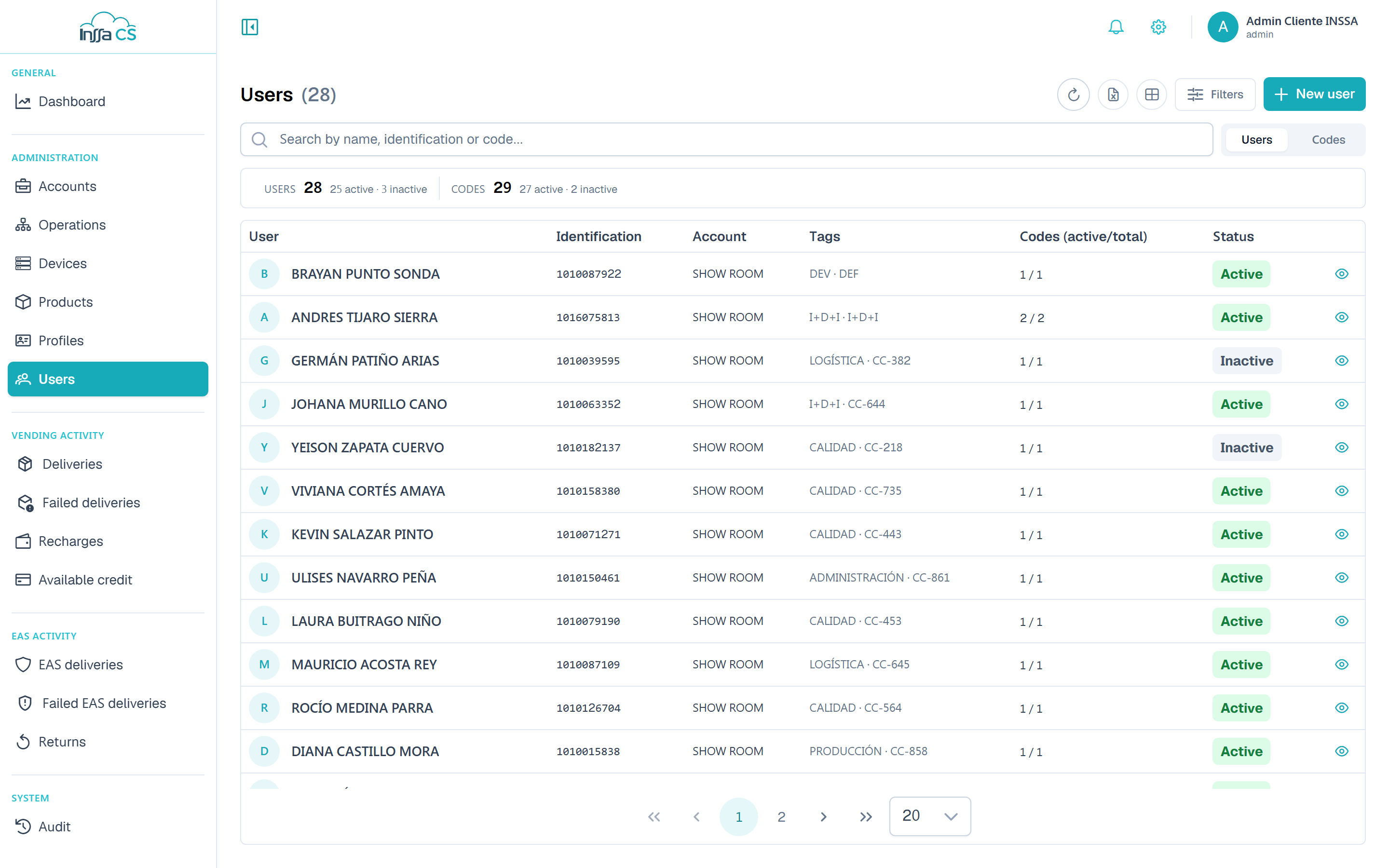
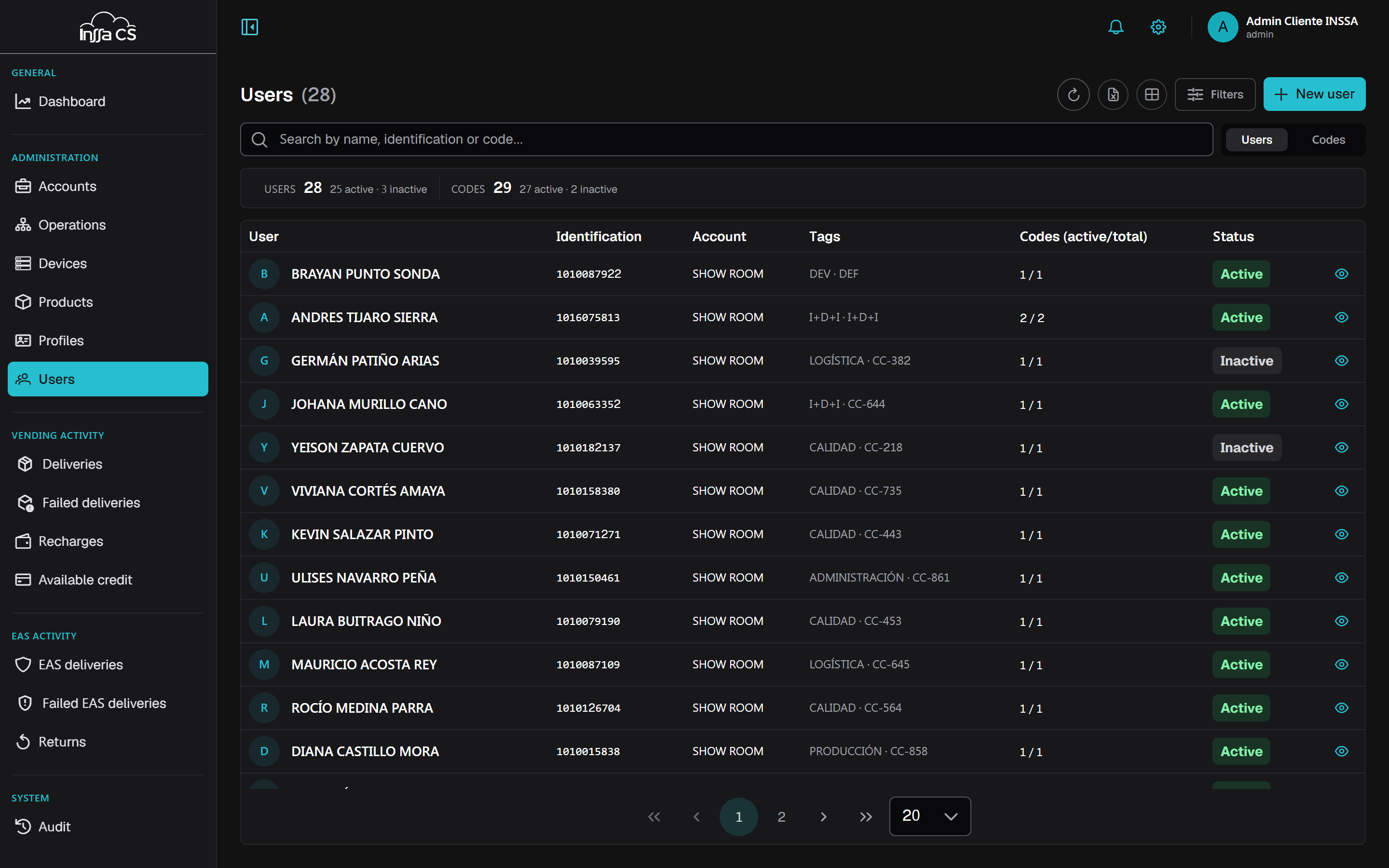
The list
Two tabs:
- Users: user, ID number, area, account, tags, codes (active/total) and status.
- Codes: code, type, line, user, profile, in use and status. Handy to search by code value.
A summary at the top shows users and codes, active and inactive.
Filters: search by name, ID number or code; account; operation; status.
Creating a user
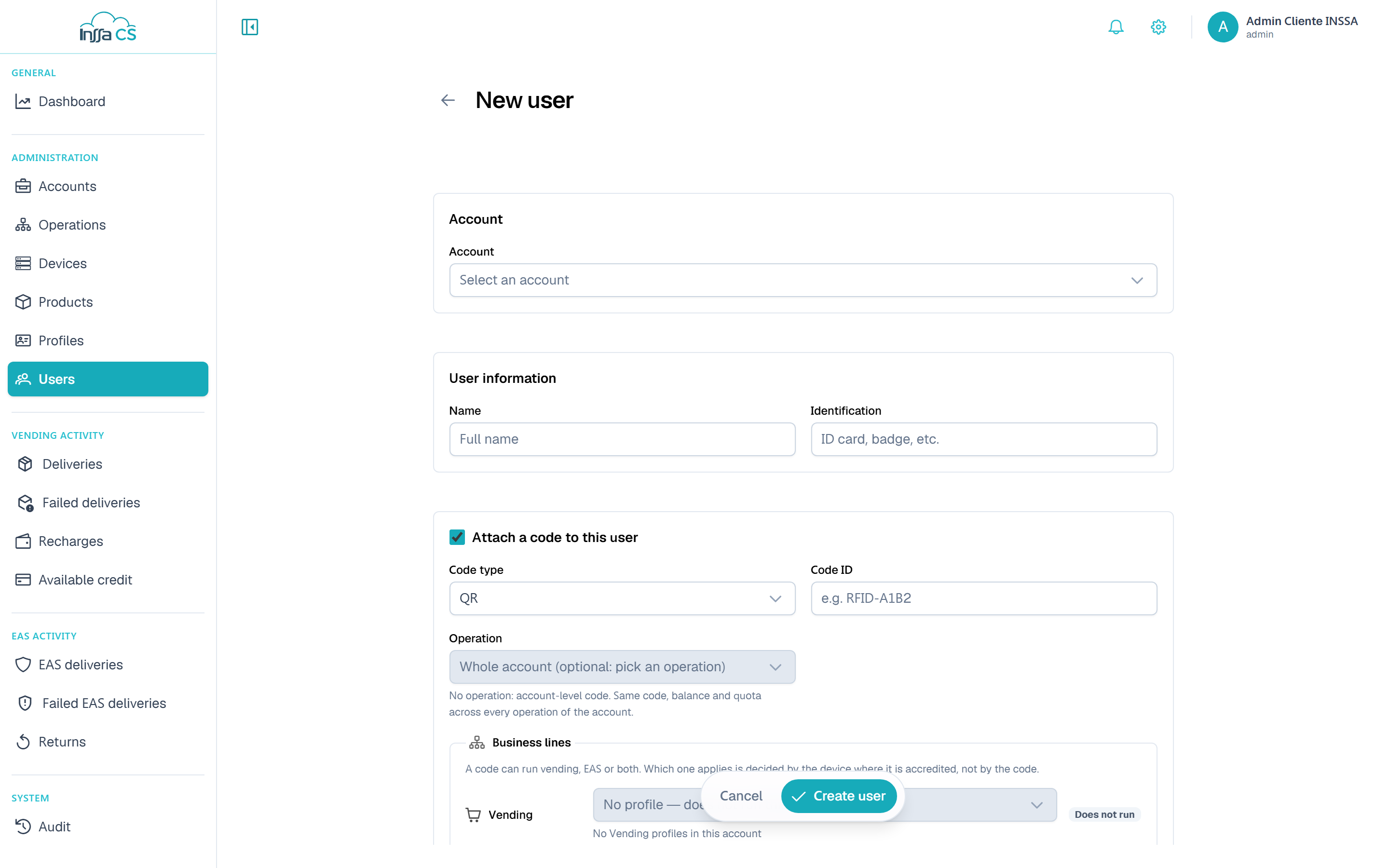
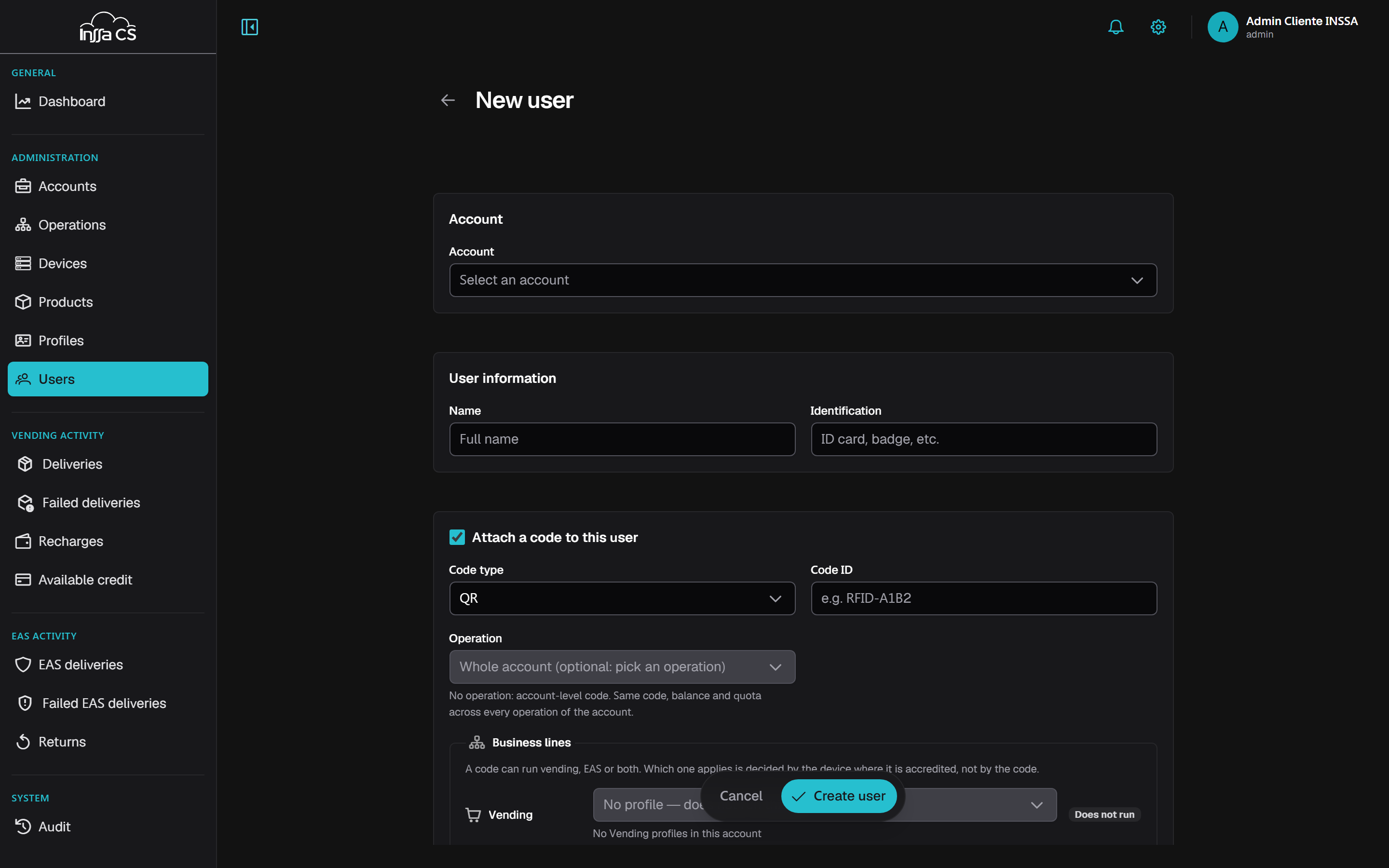
| Section | Fields |
|---|---|
| Account | The user's account (fixed for account-level sessions) |
| User information | Name, ID number, area / department, cost centre, position, classification |
| Tags | The custom fields defined on the account |
| Initial code | Optional: tick Attach a code to this user and create the first one right away |
The ID number is unique per account: repeating it returns A user with that ID number already exists.
If you attach an initial code, its data is requested (operation or account level, type, line and profile, plus initial balance for vending). See Codes.
User detail
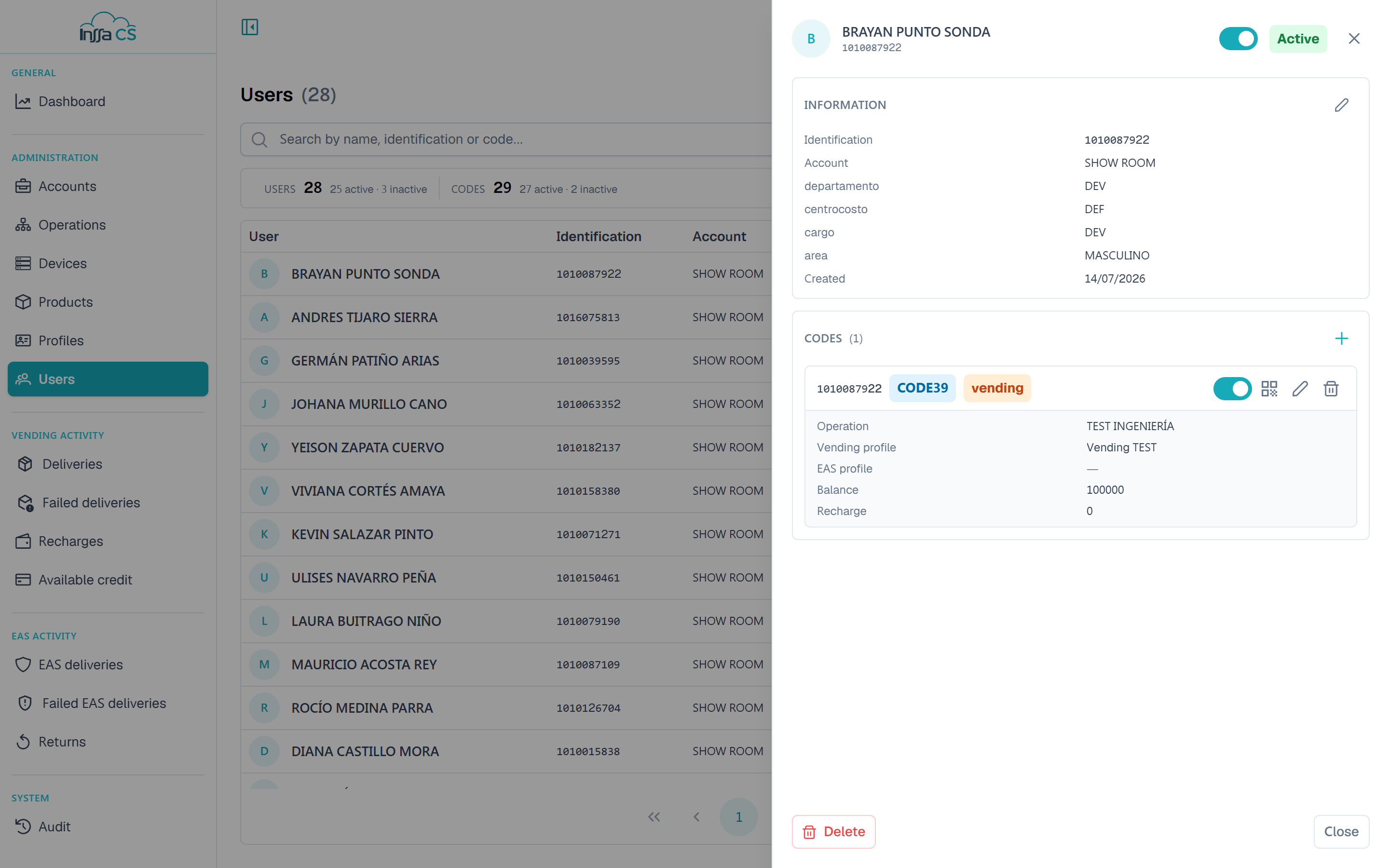
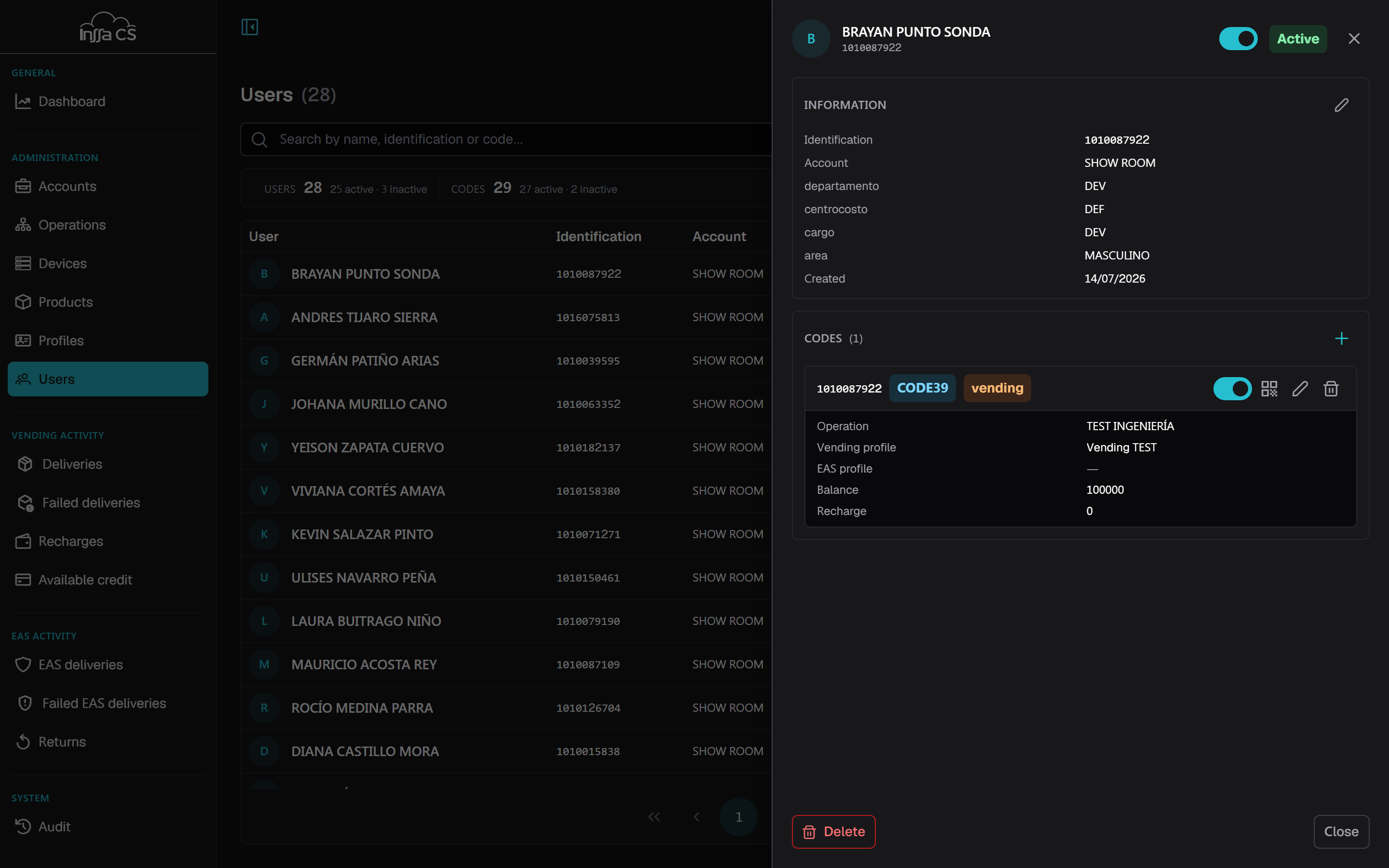
The record opens with the eye button on the row (the row itself does not react to clicks). It shows the information, the status and the list of codes with operation, profile, balance and top-up.
The header carries a switch that activates or deactivates the user. Each code has its own switch plus four buttons: hash (manage fingerprints, only on fingerprint codes), QR (view code image), pencil (edit) and bin (delete). See Icons and actions.
Deactivate and activate
Deactivating a user disables all their codes without deleting anything. Activating restores their previous state.
Delete
Cascades over the user's codes and tags and their assigned EAS products. Historical dispensations are kept. Requires typing the name.
Export to Excel
Export to Excel builds the file in your browser with one row per code: user, ID number, account, user status, code, type, line, code status, profile, balance, top-up, tags and level. It respects the applied filters.
Bulk creation
To load many users or codes at once, use Bulk actions.