Stock orders
A stock order is the document of a visit to the machine: what was planned to go in or out, in which slot, what actually happened and who did it. All under one number.
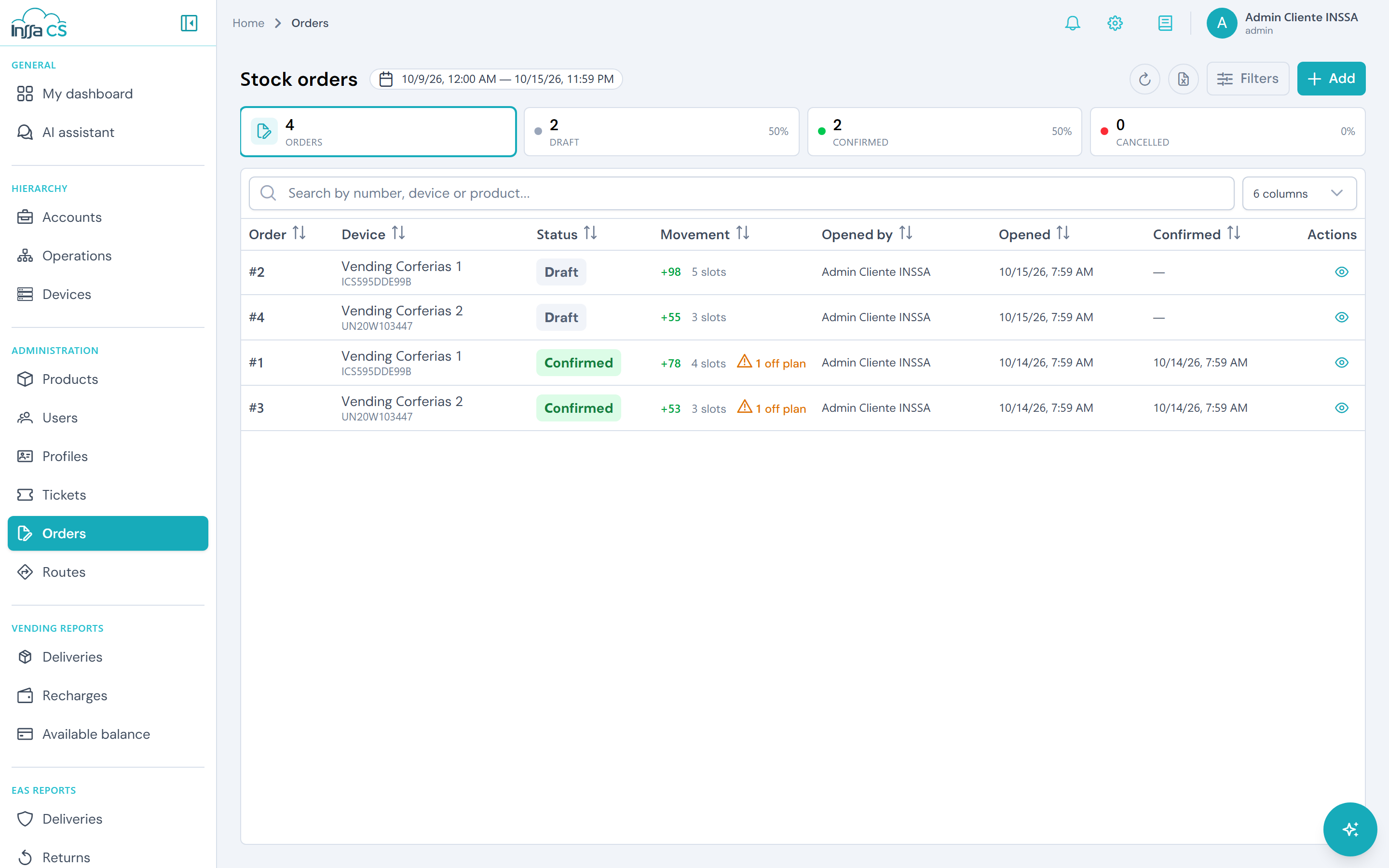
A draft is an intention: it does not touch the planogram. Stock changes the moment you Confirm and apply, with what you declare there. An intention that already moved the stock cannot be told apart from a fact.
Without an order, only restocking from the panel on the machine itself remains. The Inventory does not fill or empty: that is what Fill all and Empty all in the order are for. A single slot's quantity is not edited by hand anywhere.
All of those paths land in the device movement history. What the order adds is the why and the against what: a number, a plan made beforehand, and the difference between planned and done.
That history lives in each device's Movements tab (see Inventory).
Where an order comes from
There are two doors to the same form:
- From this screen, with Add: first you pick the device (only active devices that take orders are listed) and its slots load. Switching device clears the rows you had built.
- From the device: Devices › Inventory › Open order, with the device already set. See Inventory. On an inactive device Open order is disabled.
It is built on the real slots of the planogram, not on free text: each row picks a slot with a product, says whether to Load or Pull, and how many units. Each line is capped at the slot capacity, so the document cannot ask for something the machine will not take; if you ask for more than fits or is there today, the line warns N would fit today. Pulls require a reason —expired, damaged, rotation, product change, recount or other—: an outflow with no reason is exactly the hole the order exists to close. Below there is an optional Note field (up to 500 characters).
When you are done there are two ways out:
| Button | When |
|---|---|
| Save draft | Prepared now, confirmed in front of the machine. This is the route case. |
| Save and apply | You are already at the machine and what you declare is what you just did: it applies at once and the order closes. Only shown with permission to edit stock; without it, only Save draft is there. |
Shortcuts
Above the rows there are two shortcuts so you do not build the order slot by slot:
| Shortcut | What it adds |
|---|---|
| Fill all | A load line for every slot with a product, for what it is missing to be full (capacity − stock). Full slots are skipped. |
| Empty all | Asks for the reason once and adds a pull line for every slot with units, for everything it holds. |
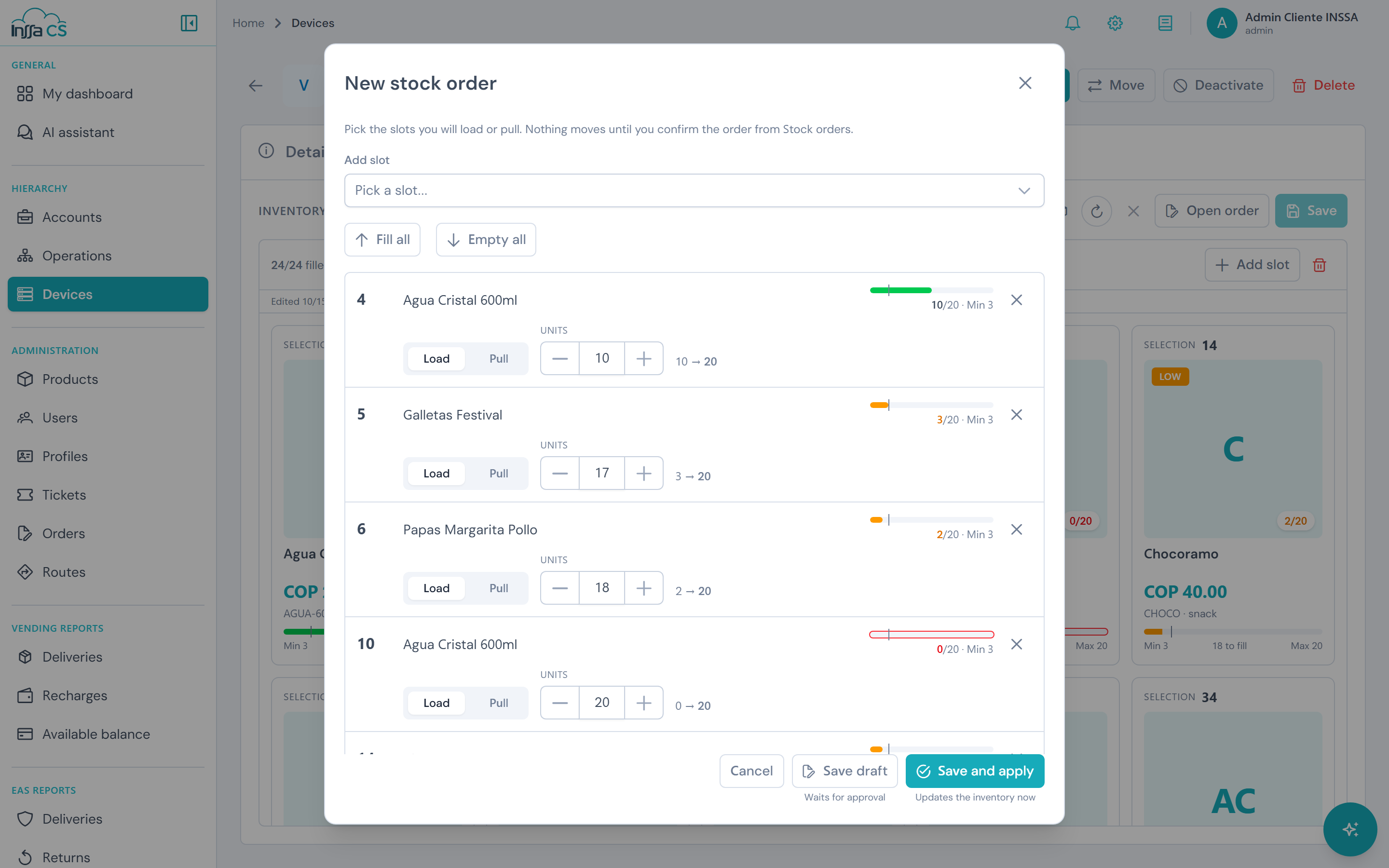
Shortcuts only prepare the draft: if a slot already had a row, they replace it, and you can adjust each one before saving. Inventory changes when the order is confirmed.
They are how you start or close a planogram, and how you change the product of a slot with units: pull them with an order (reason Product change), confirm it and change the product in the inventory.
You can plan up to the slot capacity even if it does not all fit today: between now and the visit the machine keeps selling. In that case the line warns N would fit today and Save and apply is blocked (Cannot apply now: planned margin) —it would apply a number that is not true—; the draft stands, to be confirmed with whatever actually goes in.
Orders only apply to springs and conveyor belt devices. They are not on drinks, coffee or ice cream devices (refilled with supplies), nor on the locker or the return module.
Confirming
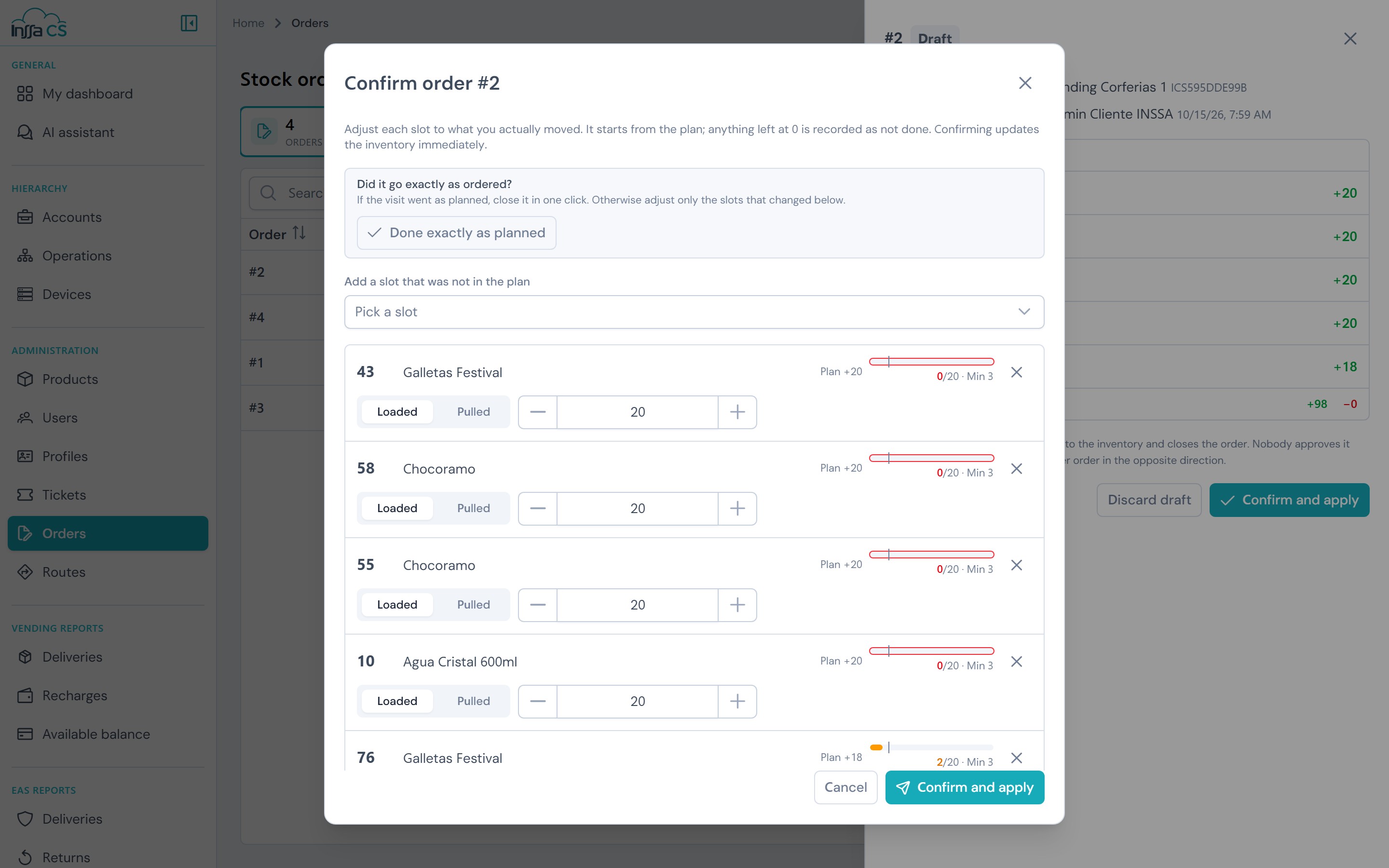
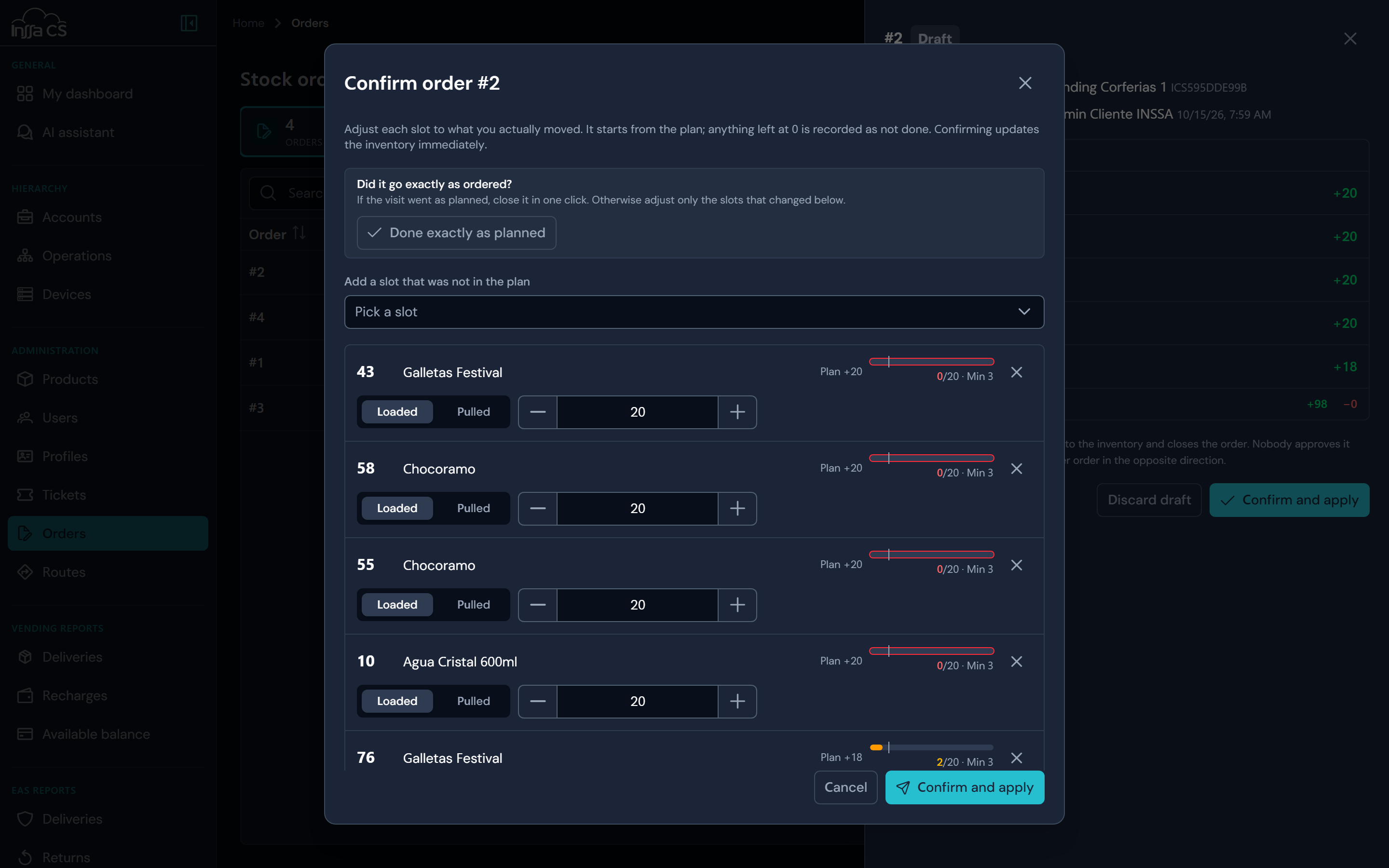
Confirming is declaring what was done, and it is what moves the inventory. The dialog starts from the plan:
- Done exactly as planned closes the visit in one click, when it did.
- Otherwise adjust only what changed. Whatever stays at 0 is recorded as not done, which is not the same as not declared.
- Add a slot that was not in the plan covers what moved along the way.
The plan is not overwritten: plan and actual live on the same line, because the difference is the data. Goods that left the warehouse and never reached the tray have to keep existing in the system.
Nobody approves the order afterwards. Fixing a load takes another order in the opposite direction.
What did not add up
When what was done does not match the plan, the order flags the slots off plan and separates two things that look alike and are not:
| Concept | What it means |
|---|---|
| Did not fit | The slot would not take those units. Nobody is short: the machine sold less than expected between the plan and the visit. |
| Not loaded | They fitted and never arrived. That is goods actually missing. |
That is why the document also stores the slot capacity at the time it was applied: planograms get reconfigured, and "how much fitted that day" is the only thing that tells a shortfall from a slot that had no room left.
The document
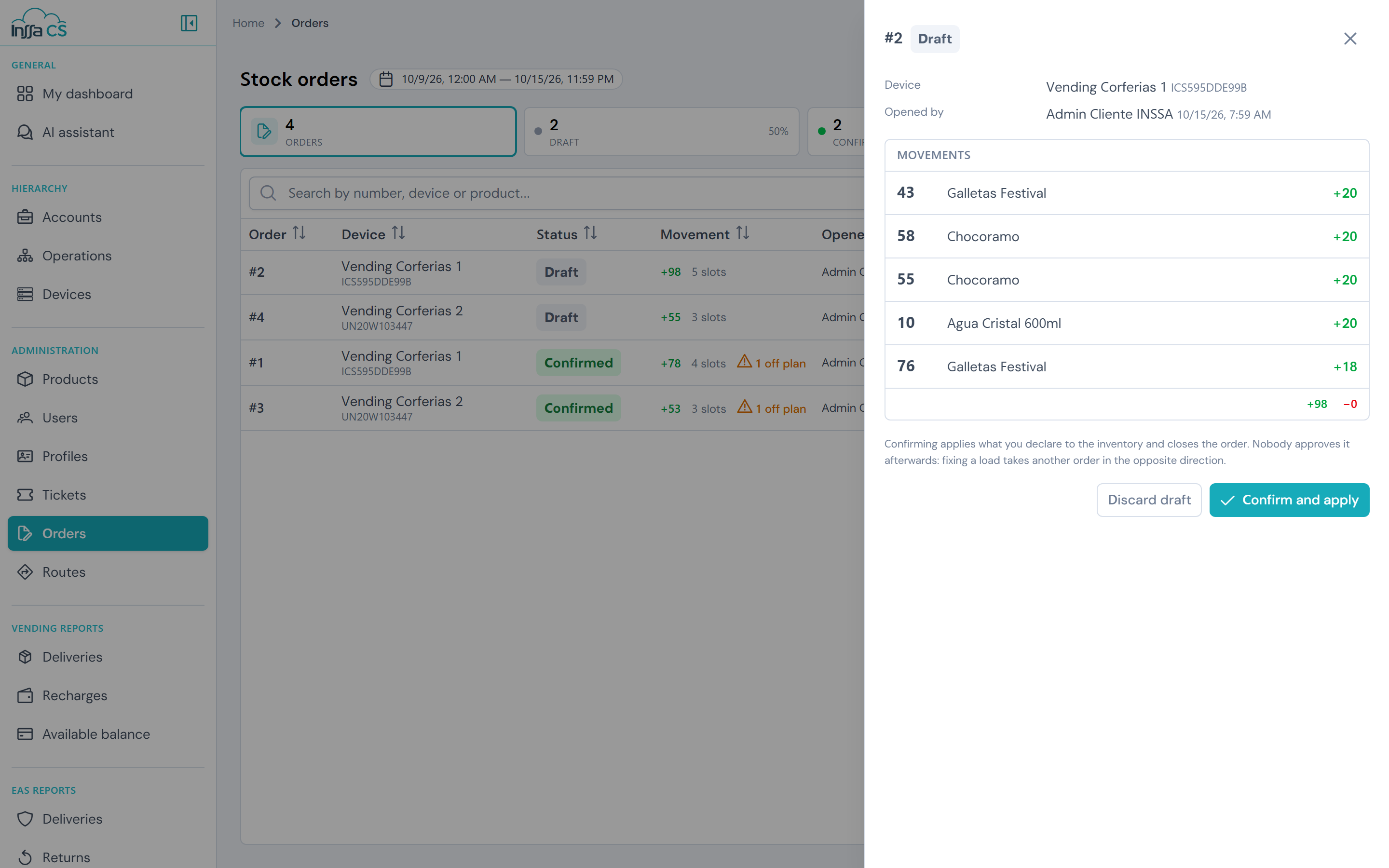
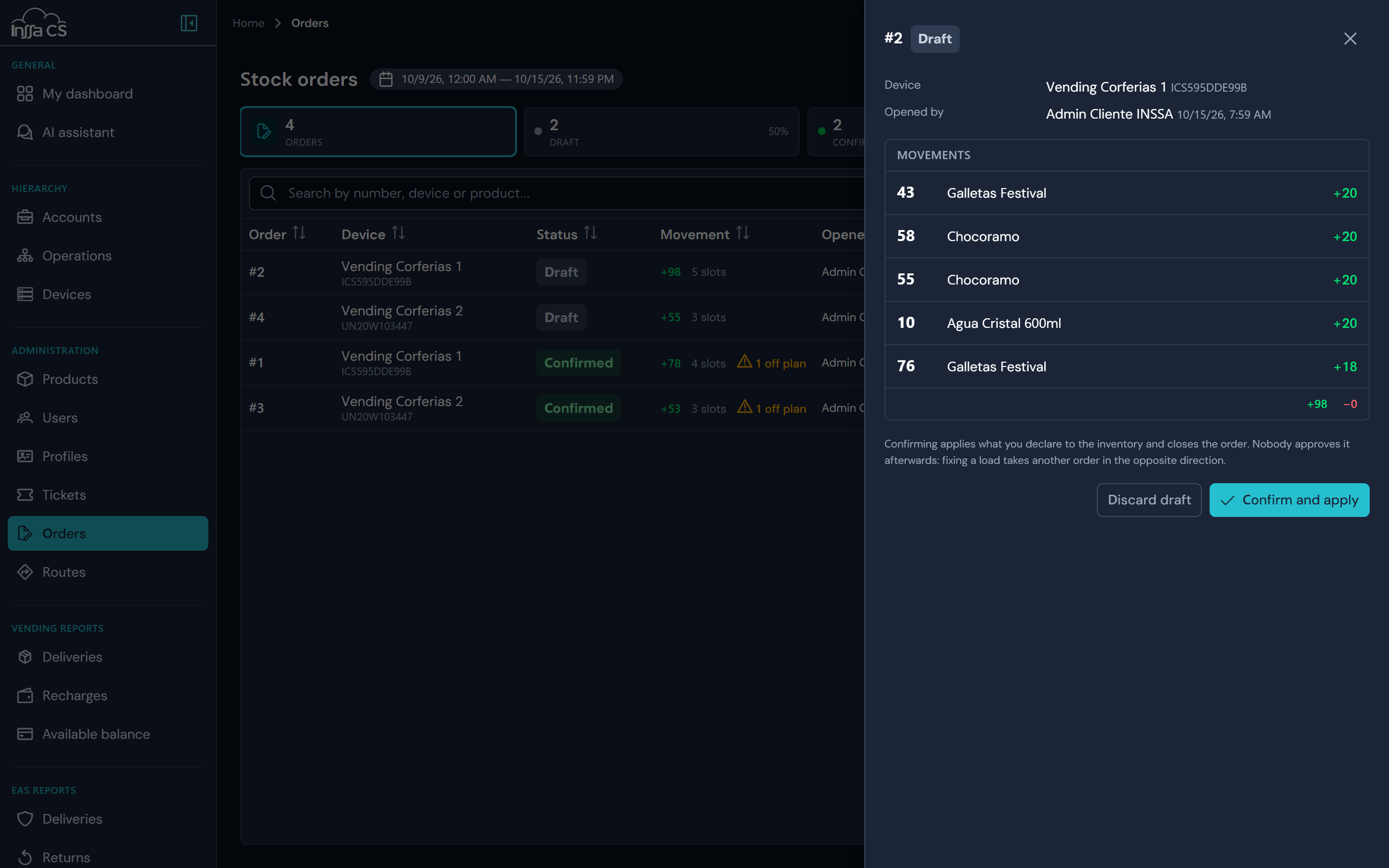
The eye button (View details) opens the panel with the header —device, status, who opened it, the note if any and, once it is confirmed, who and when— and one line per slot: selection, product, units and the reason for pulls. On a draft those are the planned ones; on a confirmed order, the actual ones, their difference against the plan and the slot counter before → after.
From there you Confirm and apply or Discard draft.
Statuses
| Status | What it means |
|---|---|
| Draft | The plan. It did not touch the inventory. |
| Confirmed | Applied and closed. Not editable. |
| Cancelled | A document that was abandoned. |
List and filters
Search by number, device (name or serial), who opened it, slot or product. The Filters panel narrows by date range and status.
- Summary cards at the top: total, draft, confirmed and cancelled. Tapping one filters by that status.
- Export to Excel downloads the table with the applied filters.
The columns: order, device, status, movement, opened by, opened and confirmed; all of them can be sorted.
With routes
A restocking route offers every active device that gets visited; if one has a draft order, the stop carries it and the planned units weigh on how urgent it is. A stop with an order closes on its own when the order is confirmed; one without an order is closed by hand with Done. The route ends when none is left pending.
Permissions
| Action | Permission |
|---|---|
| See the orders and their document | device_stock:read |
| Open an order (from this screen or from the device) | device_stock:create |
| Confirm or discard | device_stock:update |
See Permissions.