Restocking routes
You pick the devices; the route decides what order to visit them in, by urgency and traffic.
A route is the plan for the trip, not the loading document. Each stop closes on its own when its stock order is confirmed, and the route ends when no stop is left pending. What goes in and out of the planogram is recorded on the order, not here.
Planning a route
Routes › AddAdd opens the Plan a route page.
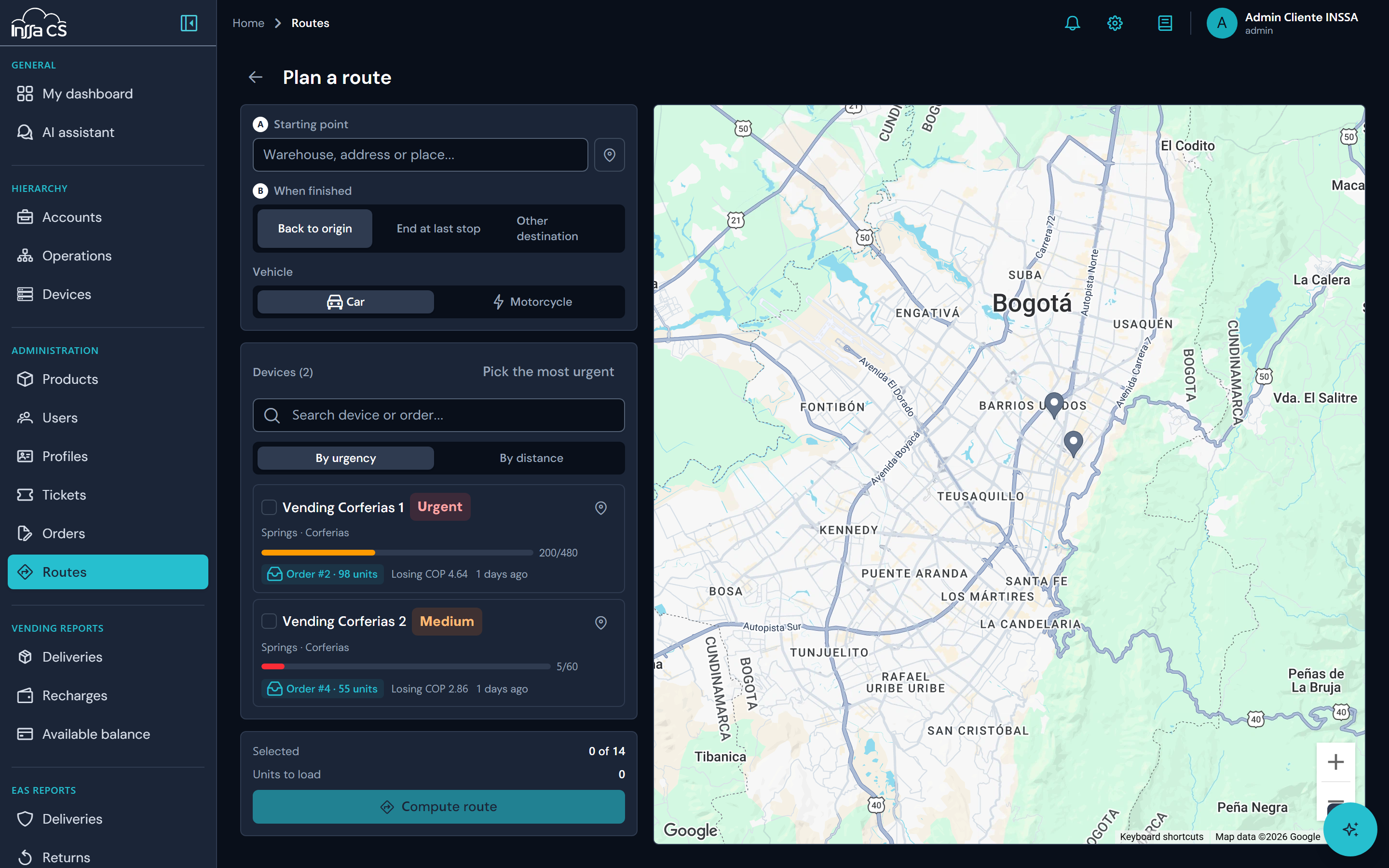
It is built in two parts:
The route
| Field | What it sets |
|---|---|
| Starting point | Warehouse, address or place. Use my current location works too. If the address did not land exactly, drag the pin. |
| When finished | Back to origin, End at last stop or Other destination. |
| Vehicle | Car or Motorcycle. It changes the times completely: a motorcycle does not sit in the same queues or take the same turns. |
Orders to handle
The list holds the active devices restocked on a visit, whether or not they have a draft stock order. If they do, the card shows the order number; if not, it says No stock order. Pick them from the row or from the pin on the map.
The list reads two ways, and they are two different questions:
| Sort | What for |
|---|---|
| By urgency | Which one hurts most. |
| By distance | Which one is on the way. It needs the starting point; until you pick it, the list is sorted by urgency. |
Picking five urgent machines scattered across the city is what makes a trip expensive — hence the toggle.
Each candidate shows why it is urgent —units to load, sales being lost, days since the last visit— with an urgency mark of Urgent · Medium · Low. The signal that weighs most is the money per day the device is not making because its slots are empty: an empty device nobody buys from is not urgent.
Pick the most urgent (or Pick the closest, when sorting by distance) selects them in one go; Compute route measures times against current traffic and orders the trip. It is enabled once there is a starting point, at least one device picked and, with Other destination, the end point.
A device without coordinates cannot be routed or placed on the map. It is listed separately, with a shortcut to assign its location from the device page. A device already on another route cannot be picked: its card says Already in another route. with a View route link.
A route takes a maximum number of stops. Go over it and the planner says so and will not calculate until you drop some.
The calculated route
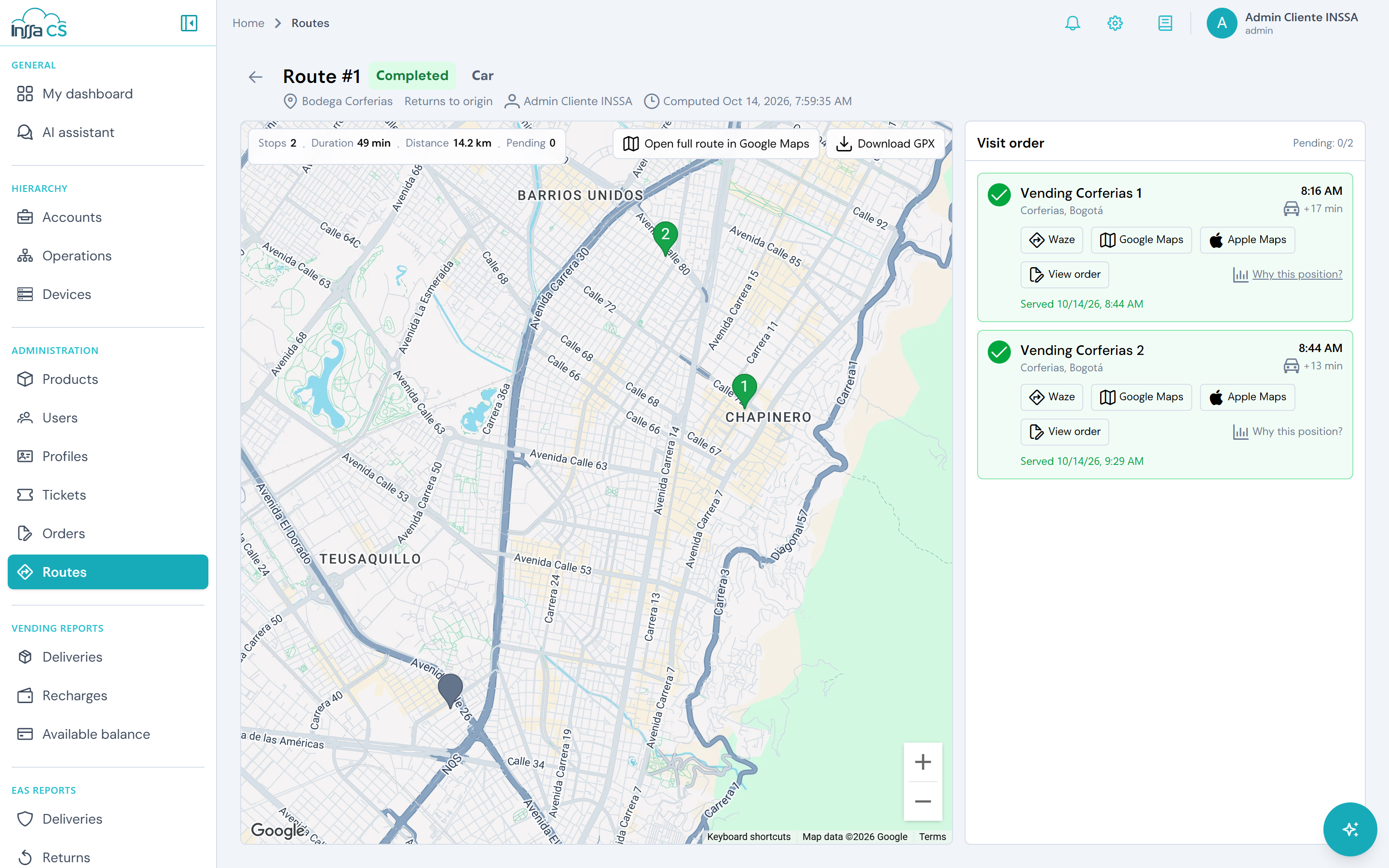
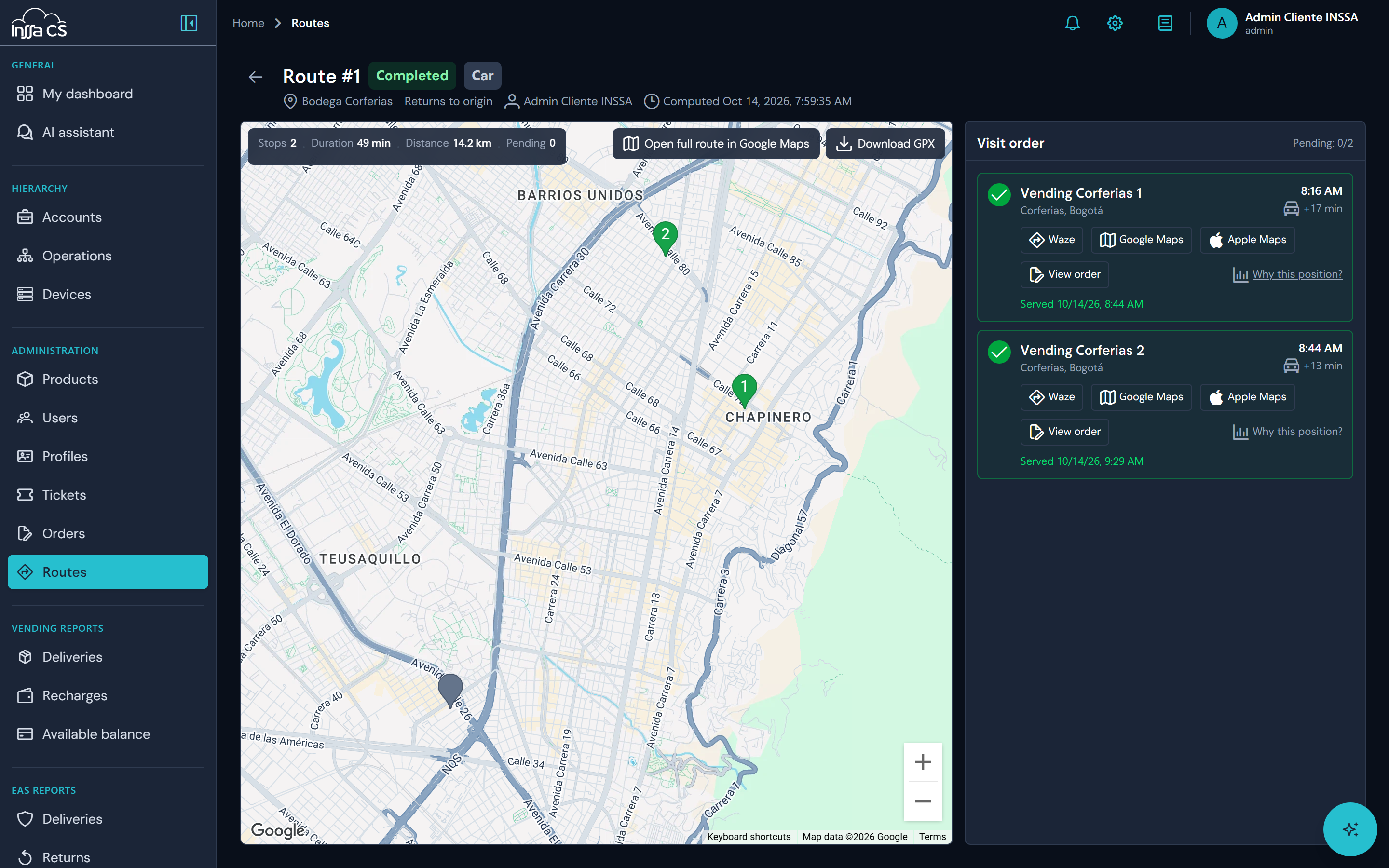
The detail carries the visiting order, with stops, duration, distance and how many are pending.
- Why this position? explains, stop by stop, which signals moved it up or down. If there were none, it says so: ordered by proximity alone.
- Open full route in Google Maps and Download GPX hand the trip to the phone's navigator. If the route has more stops than a Google Maps link takes, navigate stop by stop from the list.
- A stop a few steps from the previous one is marked as such: you walk, without moving the vehicle.
- View order opens the stock order for that stop. A stop without an order is closed by hand with Done while the route is On the road.
They are the traffic times from the moment it was calculated. Recalculating them would make the document describe a trip nobody took.
Statuses
| Status | What it means |
|---|---|
| Draft | Calculated, not out yet. |
| On the road | Dispatched with Send out. |
| Completed | No stops left pending. |
| Cancelled | The trip was abandoned. |
Cancelling deletes nothing: the orders go back to draft and are free for another route, and what was already served stays on the record.
List and filters
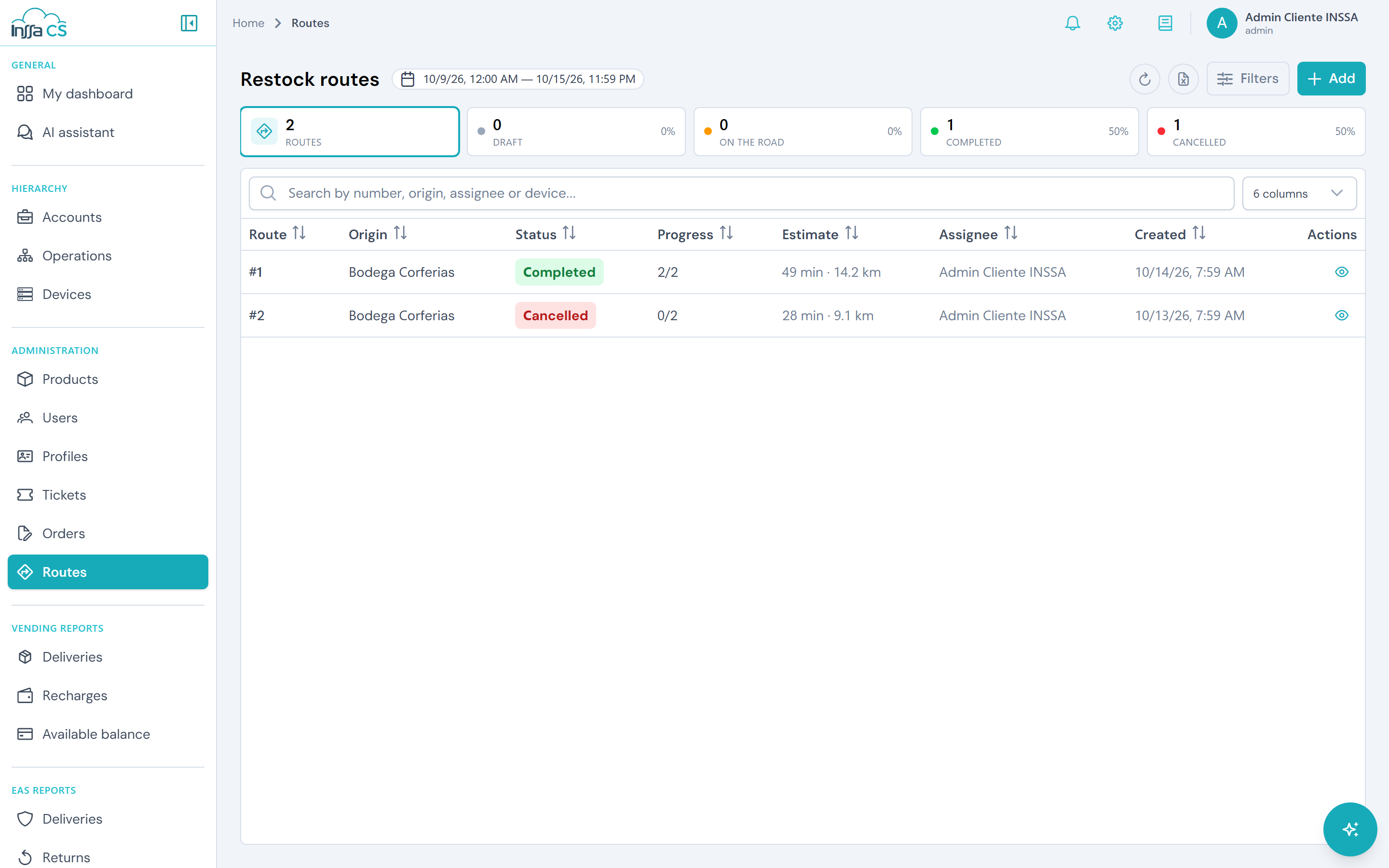
The list searches by number, origin, assignee or device, and the Filters panel narrows by date range and status. The columns: route, origin, status, progress, estimate, assignee and creation date; all of them can be sorted.
- Summary cards at the top: total, draft, on the road, completed and cancelled. Tapping one filters by that status.
- Export to Excel downloads the table with the applied filters.
Permissions
| Action | Permission |
|---|---|
| See routes and their detail | routes:read |
| Plan a route | routes:create |
| Send out, Cancel route and closing a stop with Done | routes:update |
See Permissions.