Profiles
The profile is the consumption rule assigned to a code: how much, how often, which days and on which devices. Concept in Codes and profiles.
A profile belongs to one account and one business line. It does not belong to an operation: where it works is decided by the devices you enable, one by one.
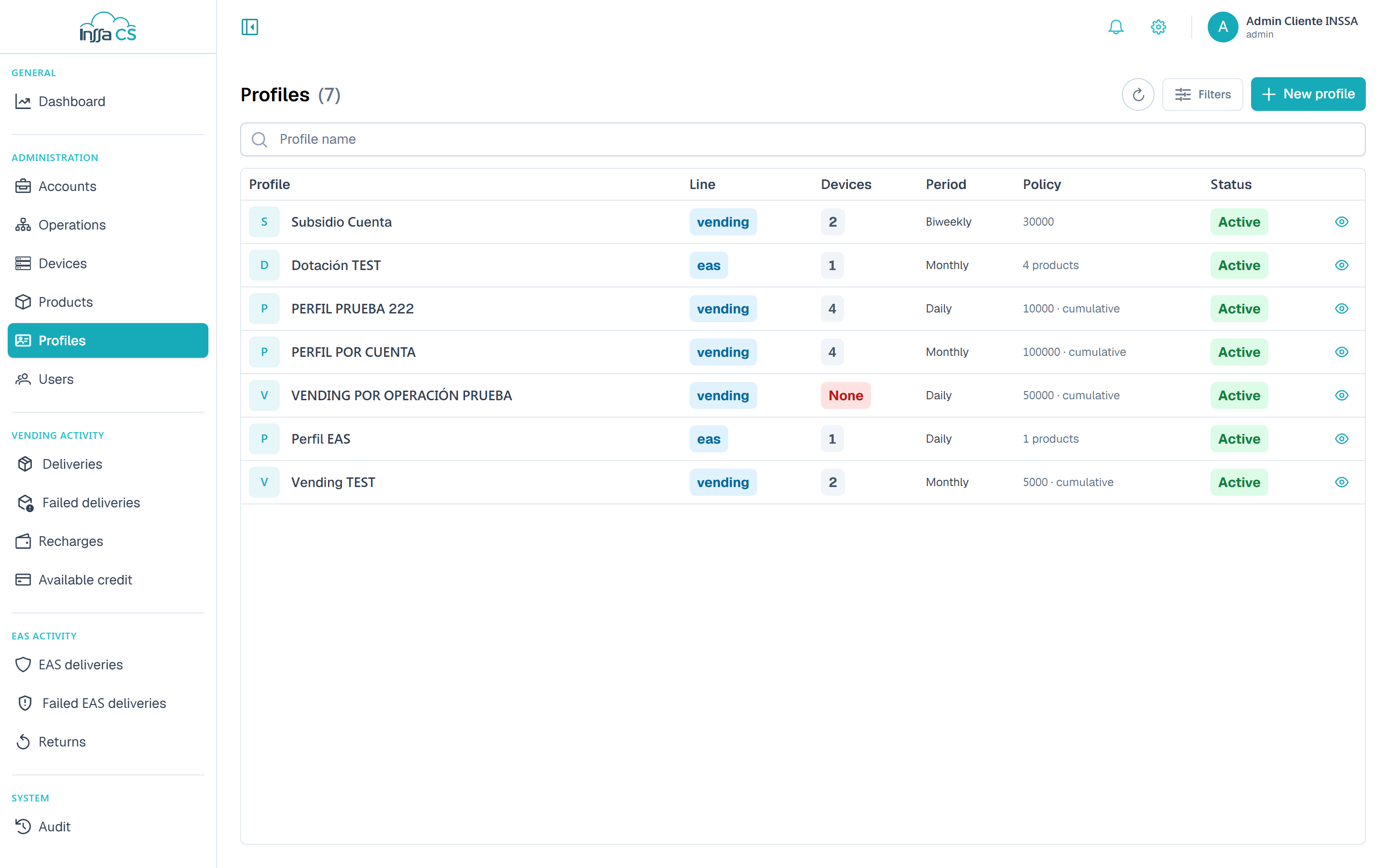
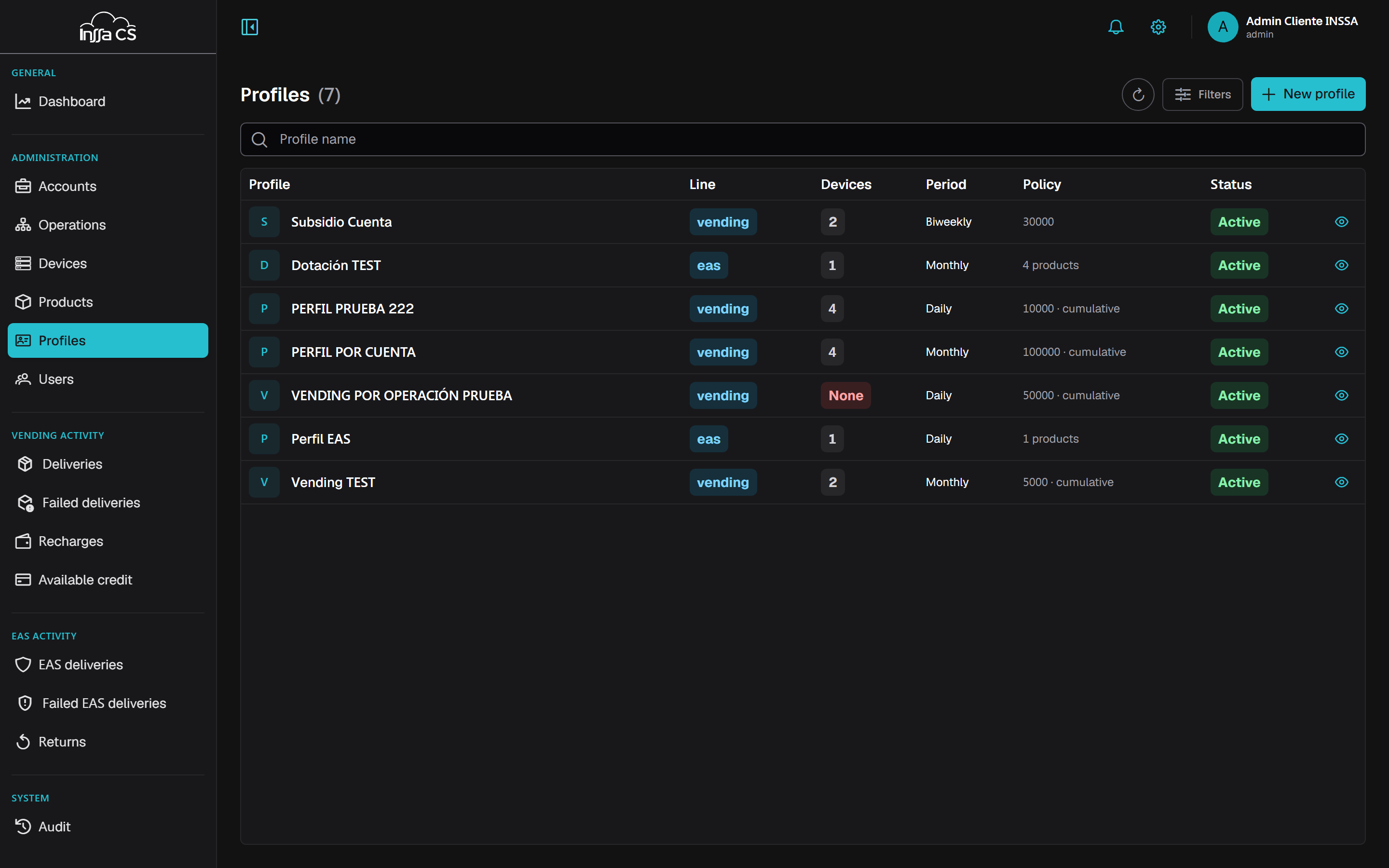
The list
Columns: profile, line, period, policy (EAS products or max balance), cumulative and status. Filters: search by name, account, business line and status.
Creating a profile
Profiles are created by a global, client- or account-level operator. If your scope is an operation, New profile does not appear: ask whoever manages the account.
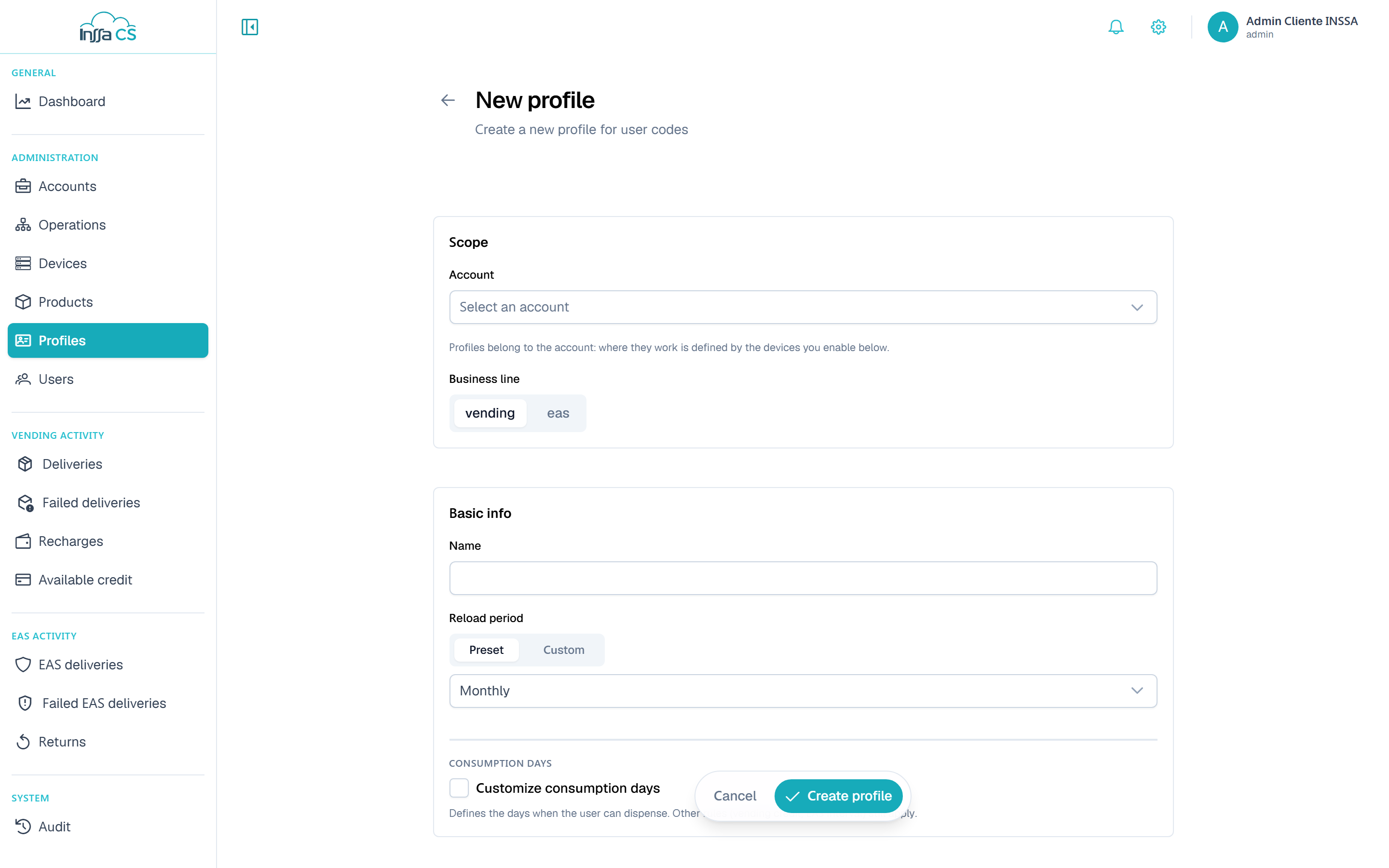
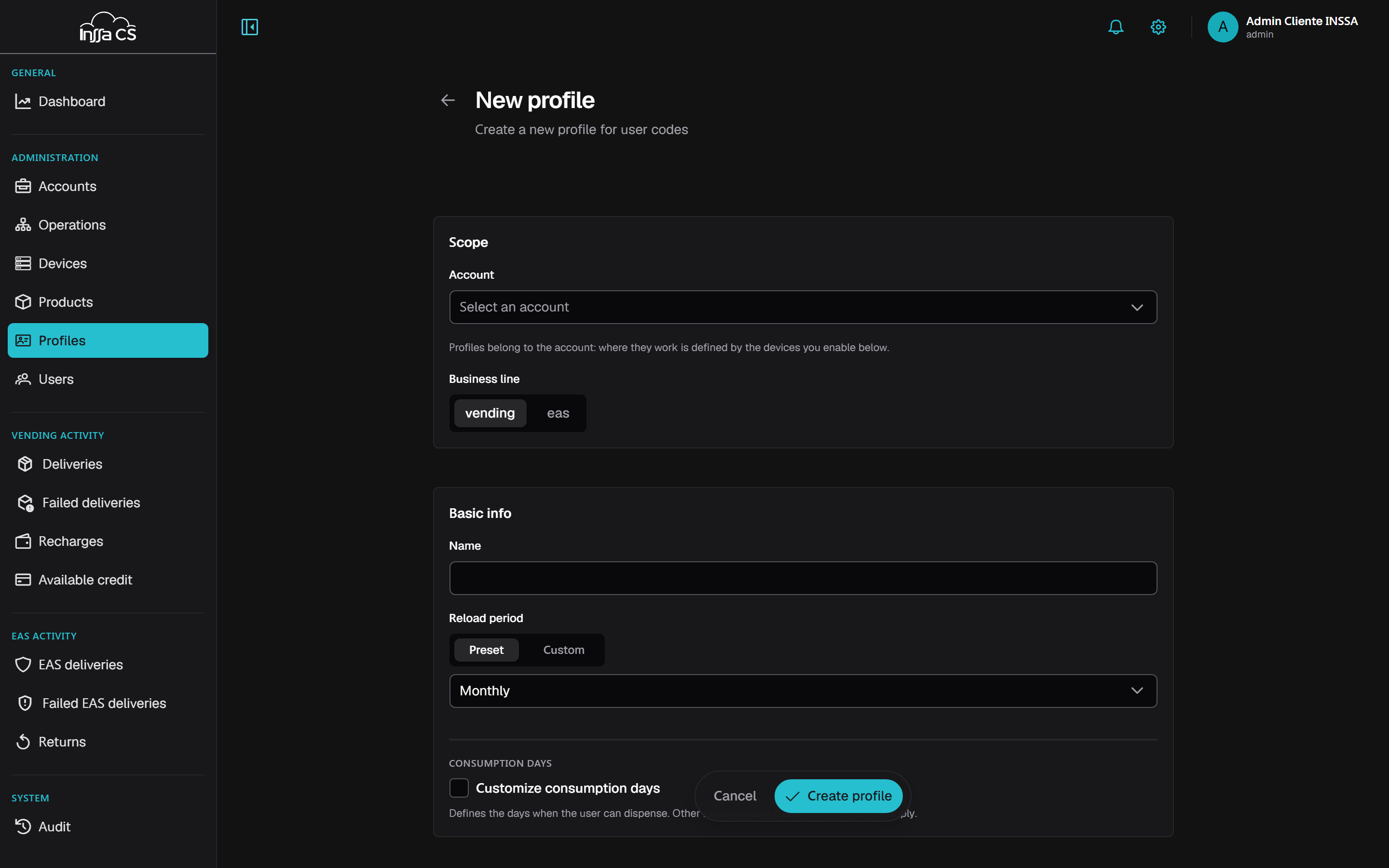
1. Scope
Account and business line. That is all: a profile's scope is the account.
2. Basics
Name (unique within the account) and top-up period: preset (daily, weekly, biweekly, monthly, quarterly, semiannual, annual) or custom with specific calendar dates. With custom dates, top-ups happen only on those dates.
3a. Vending profile
| Field | Note |
|---|---|
| Top-up value | In minor units. |
| Max balance | Ceiling of the subsidised balance. |
| Cumulative credit | On: adds to the previous balance. Off: replaces it. |
3b. EAS profile
Add products with Add product. Per line:
- Product (of the account and the EAS line);
- Quantity per period, or Unlimited (no cap; frequency still applies);
- Time between deliveries: minimum wait in days / hours / minutes.
An EAS profile needs at least one product.
4. Consumption days (optional)
Customise consumption days opens the year calendar: pick enabled weekdays and include or exclude specific dates.
- Not customised: consumption on any day.
- Customised with no day selected: nothing can be credited or dispensed on any day (the app asks for confirmation).
Other rules (vending credit, EAS time between deliveries) still apply.
5. Authorised devices
This is the section that defines where the profile works: a table with the account's active devices for that business line, with Device, Operation and Site columns and a checkbox per row.
- They all start checked: the job is to uncheck what does not apply.
- Per-operation shortcut: check or uncheck every device of an operation in one go. It is only an interface shortcut — what gets saved are the devices, not the operation.
- Search by serial, name, site or operation, for accounts running many machines.
- A counter states how many ended up enabled out of how many.
If another device is installed in the account later, it is not enabled automatically: you must edit the profile again and check it. Worth reviewing profiles after every installation.
Leave none checked and the profile is saved but dispenses nowhere; the app warns first (No devices enabled) and the summary repeats it.
Detail and editing
The panel opens with the row's eye. It shows the account, the period, the consumption days, the EAS products or vending parameters, and how many devices it enables. Edit (pencil) to change it.
Deactivate, activate and delete
- Deactivate (power button ⏻): its codes stop withdrawing; activating restores them.
- Delete (bin): removes its EAS products and authorised devices. If the profile has codes assigned, reassign them first: the server answers Cannot delete: the profile has codes assigned.