Notifications
The bell in the top bar receives alerts in real time, with no page reload.
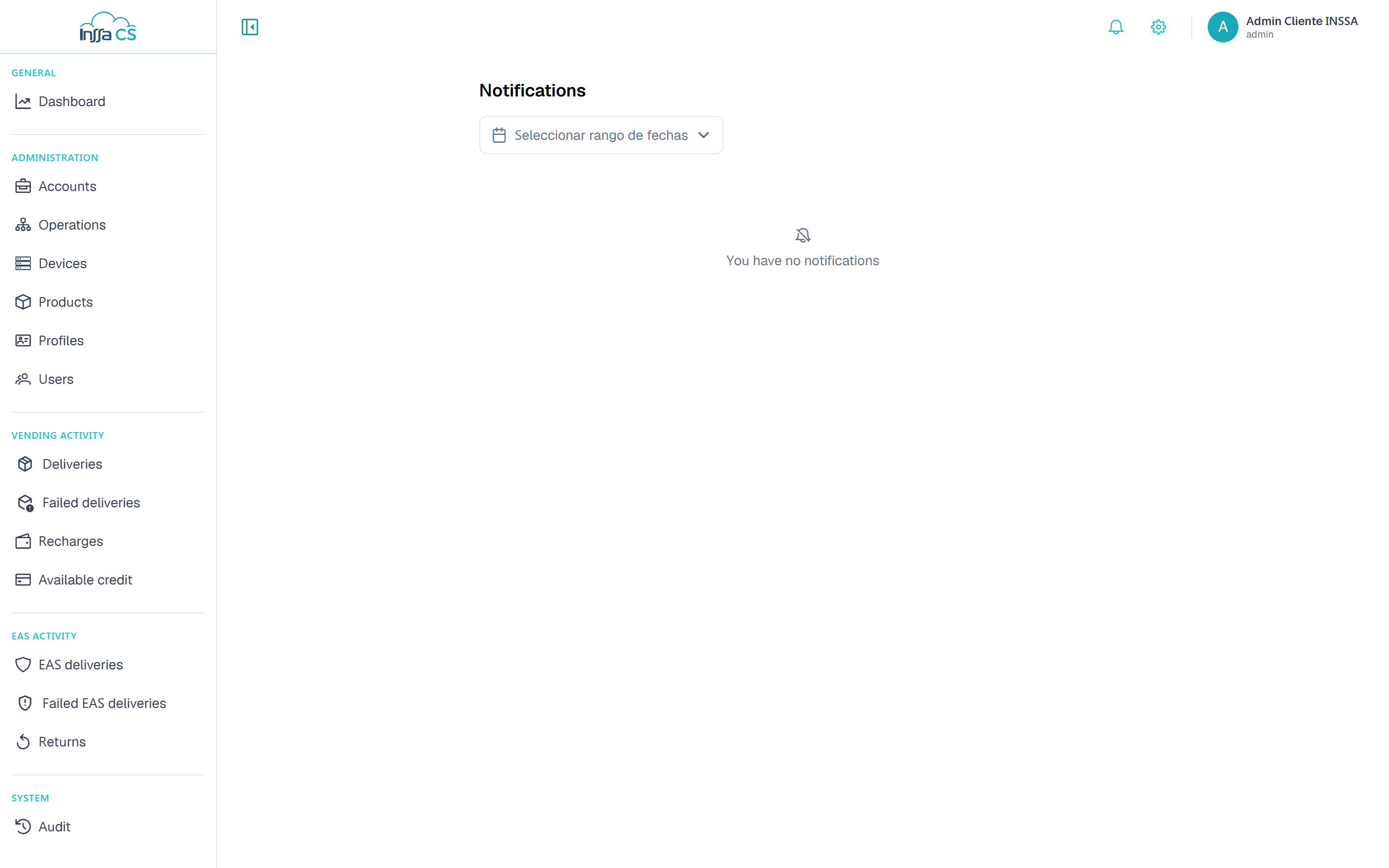
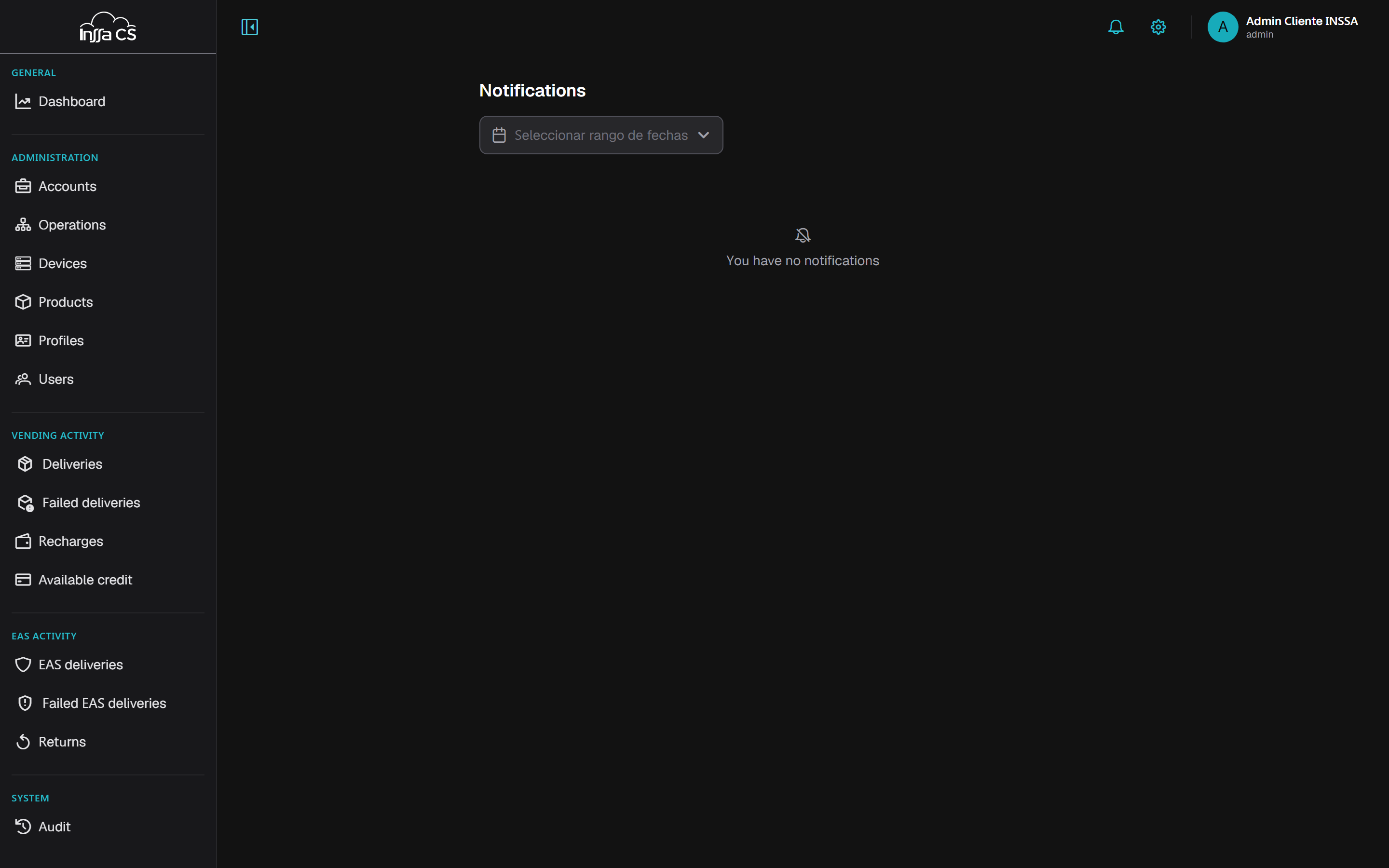
Bell and panel
- A counter shows how many new ones arrived since you last looked. It clears when you open the bell or the Notifications page; opening it does not mark them as read.
- Opening it lists the latest ones, with Mark all as read and View all notifications.
- Every incoming notice plays a sound; errors play twice. Turn the sound off in My profile › Preferences (see My profile and preferences). The browser only allows sound after your first click or key press in the session.
- When a new one arrives, a toast also appears with the same icon it will have in the list and its severity's colour: a hardware alert must not look like a device start-up.
- With none: You have no notifications.
Full page
System › NotificationsIt sits in the menu next to Audit, and View all notifications also takes you there. It needs no permission: every operator sees it, with what falls in their scope.
The list is grouped by day, with the date as a separator. For recent items the time is relative (now, 12 min ago, 3 h ago): what matters about an alert is how old it is, not the exact time.
Each row carries:
- An icon per type and a colour per severity (Error, Warning, Information).
- The device serial as a link: it opens the device list with that search already filled in.
- Details: expands the alert's Code and its Description as the device reported it (No description if it sent none).
- Mark as read. Unread ones are visually distinct.
Mark all as read shows in the header only while something is unread, and marks everything within your scope, not only what is loaded on screen.
Filters
The Filters button opens the side panel, same as every other list:
| Filter | What it narrows |
|---|---|
| Date range | When the notification arrived. |
| Unread only | Leaves out what you already read. |
| Type | Device start-up, Device alert, Low stock, Quota exceeded, Inventory access denied, Currency mismatch, Non-reusable return. |
| Severity | Error, Warning, Information. |
You pick them and commit with Apply (it does not filter live); a badge on the button shows how many filters are active and Clear removes them. With no results: No results match these filters. At the end of the list, No more notifications.
What arrives
Device events and events from your processes, according to your scope: an account-level operator gets every operation of the account; a client-level one gets every account.
| Type | When it arrives |
|---|---|
| Device start-up | The device booted and reported in. |
| Device alert | The device reports a fault or a state of its hardware: payment peripherals or gear locker. |
| Low stock | A selection reached its minimum quantity. |
| Quota exceeded | In EAS, someone withdrew with the period quota already used up. The delivery already happened: it says who, what and how many they had. |
| Inventory access denied | An inventory change was rejected at the device; nothing was modified. |
| Currency mismatch | A cashless device reports a currency different from the account balance's. If it happens on accreditation, the purchase is rejected; if on delivery, the sale is recorded. Check the device's or the account's currency. |
| Non-reusable return | In EAS, a non-reusable product came back into a locker slot. It names the product, the device and the selection: clean it before delivering from it again. |
Device alerts
The device reports them and the sentence says what happened (for example bill jammed in the validator). Every alert the device reports arrives as its own notification, even if the same one repeats a few minutes later. They cover these sources:
| Source | What it reports |
|---|---|
| Payment peripherals | Bill validator, bill recycler and coin changer: jams, motor or sensor faults, cash box removed, a coin that did not credit. |
| Card reader | Communication failure, disconnection and reconnection, payment declined or not answered. |
| Payment | The gateway charged an amount different from the one requested, or a sale was declined because the price exceeds the allowed maximum. |
| Machine communication | MDB communication lost or restored, no communication with the MDB board, failed DEX read. |
| Locker | A compartment did not confirm opening; evidence camera failure. |
| Storage and sync | Full, low or read-only disk, corrupt local database, cash closing not uploaded, delivery or return without video, stuck queue, temporary credentials and license status (expiring, expired, valid). |
| Terminal | Door opened or closed, network configuration, receipt printer, scanner, USB peripheral connected or disconnected, and someone opened the terminal setup (informational). |
| Unknown | Unknown alert: the device reported a code the app does not recognise. The code and description it sent show under Details. |
The severity says what to do:
| Severity | What it means |
|---|---|
| Error | The subsystem is out of service, hardware is missing or information was lost: someone has to go to the device. |
| Warning | Suspected fraud, money that was not credited or a stuck process: worth checking. |
| Information | Normal operating state of the protocol: logged, not urgent. |
The alert codes are a closed catalogue on the device side, and not all of them are used in every installation: what you see depends on the hardware it has.
Notifications are routed by hierarchy: you never see events from an account or operation outside your scope.