Bulk actions
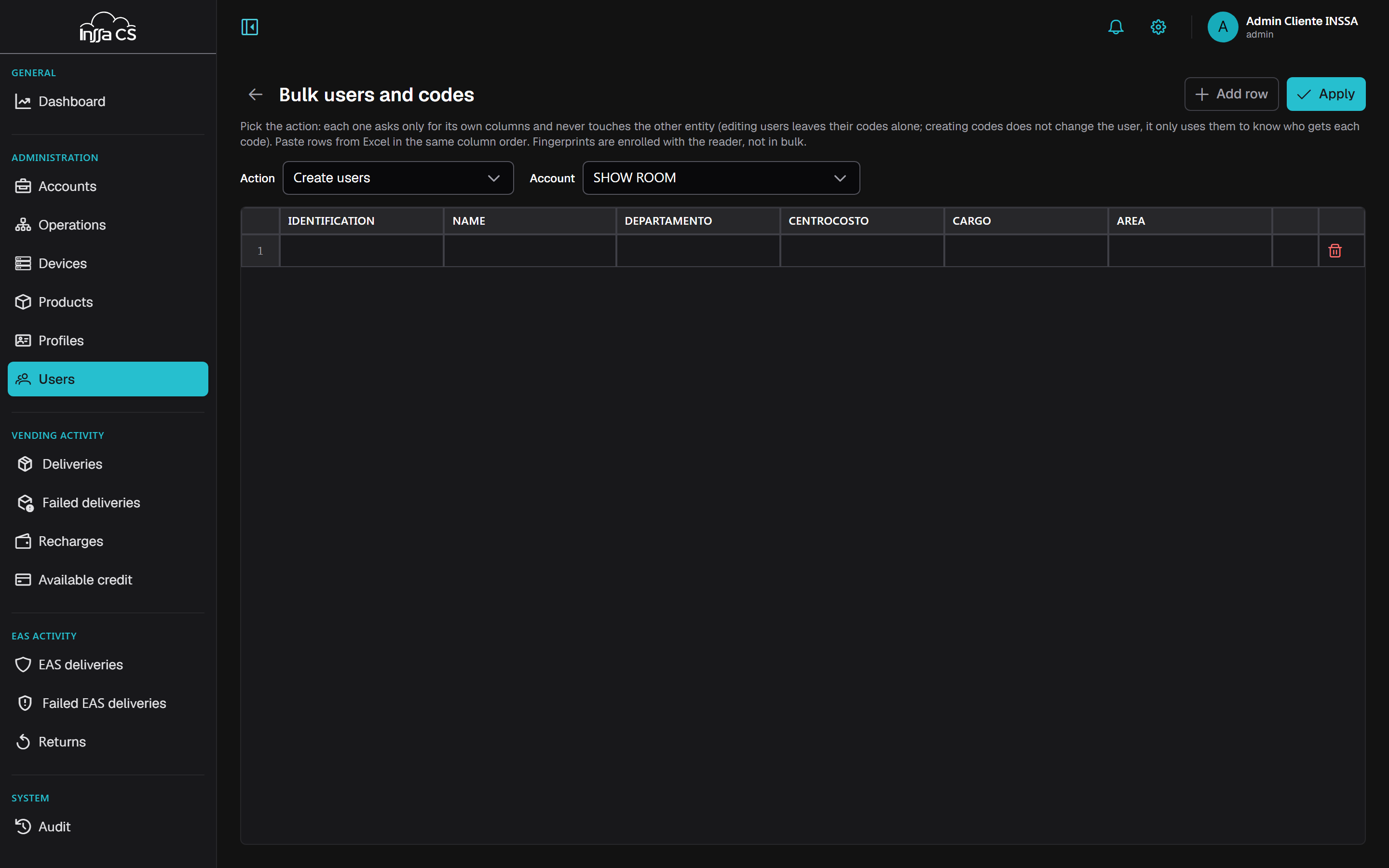
For working on many users or codes at once: a grid where you can paste rows from Excel.
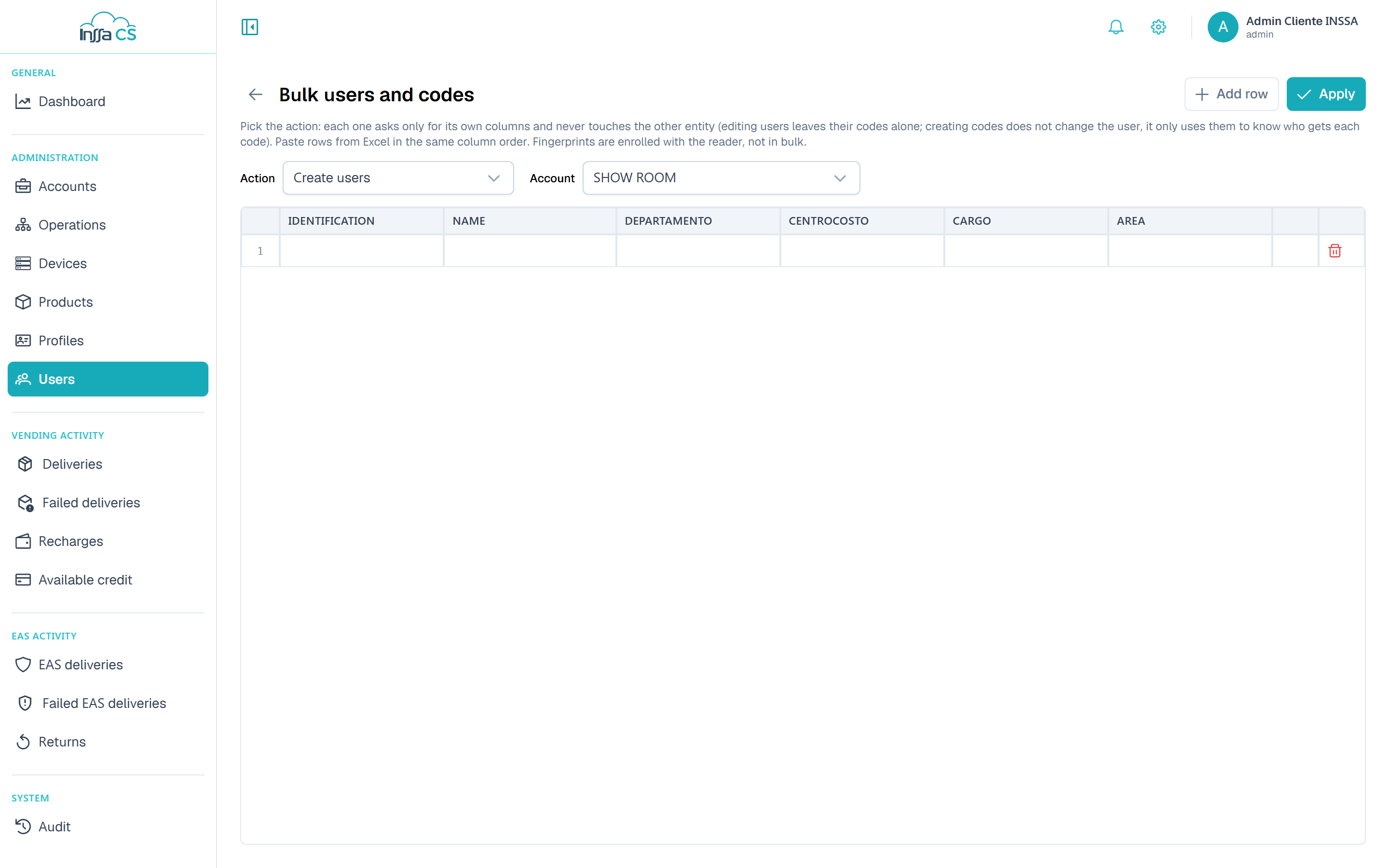
How it works
- Pick the account.
- Pick the action. Each action asks for only its columns and never touches the other entity: editing users does not alter their codes; creating codes does not alter the user, it only uses them to know who to assign the codes to.
- Add row, or paste from Excel in the same order as the columns shown in the grid.
- Apply → the preview shows exactly what will change.
- Confirm. Deletions require typing the confirmation word.
Available actions
| Group | Actions |
|---|---|
| Users | Create users · Edit users · Delete users |
| Codes | Create codes · Edit codes · Delete codes · Activate codes · Deactivate codes |
Columns per action: ID number, name, operation, line, vending profile, EAS profile, code, type and balance.
- Operation: Account (all) leaves the code at account level; No change leaves it as is.
- Move to account level requires picking at least one profile of the target level.
- No profile removes that line's profile (a code must keep at least one).
Result and per-row errors
When it finishes, the summary reports Created · Updated · Deleted · Failed. Rows with errors are flagged with their reason and do not block the rest: valid rows are applied. Typical reasons:
- Required field;
- This row changes nothing: fill in at least one field;
- Moving levels requires at least one profile of the target level;
- duplicate ID number or code.
Downloading code images
Download images builds a ZIP with the visual form of the batch's codes. Types with no image (NFC, fingerprint, MRZ) are skipped and the app tells you how many were left out.
Fingerprints are not bulk
Fingerprint enrolment is always done with the reader, code by code. See Fingerprints.