Accounts
The account is the client's operational unit: it sets the currency and the business lines of everything below it.
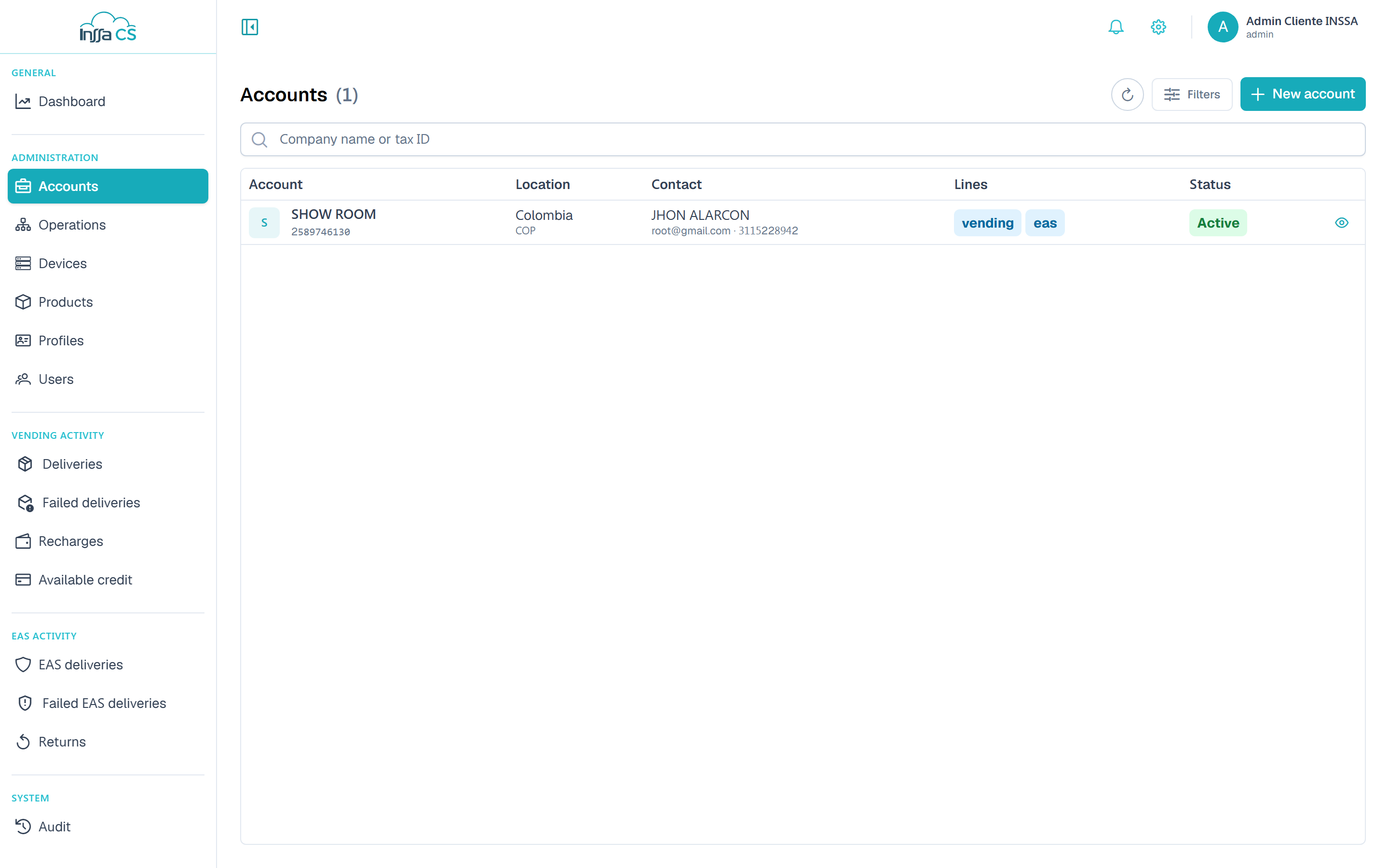
The list
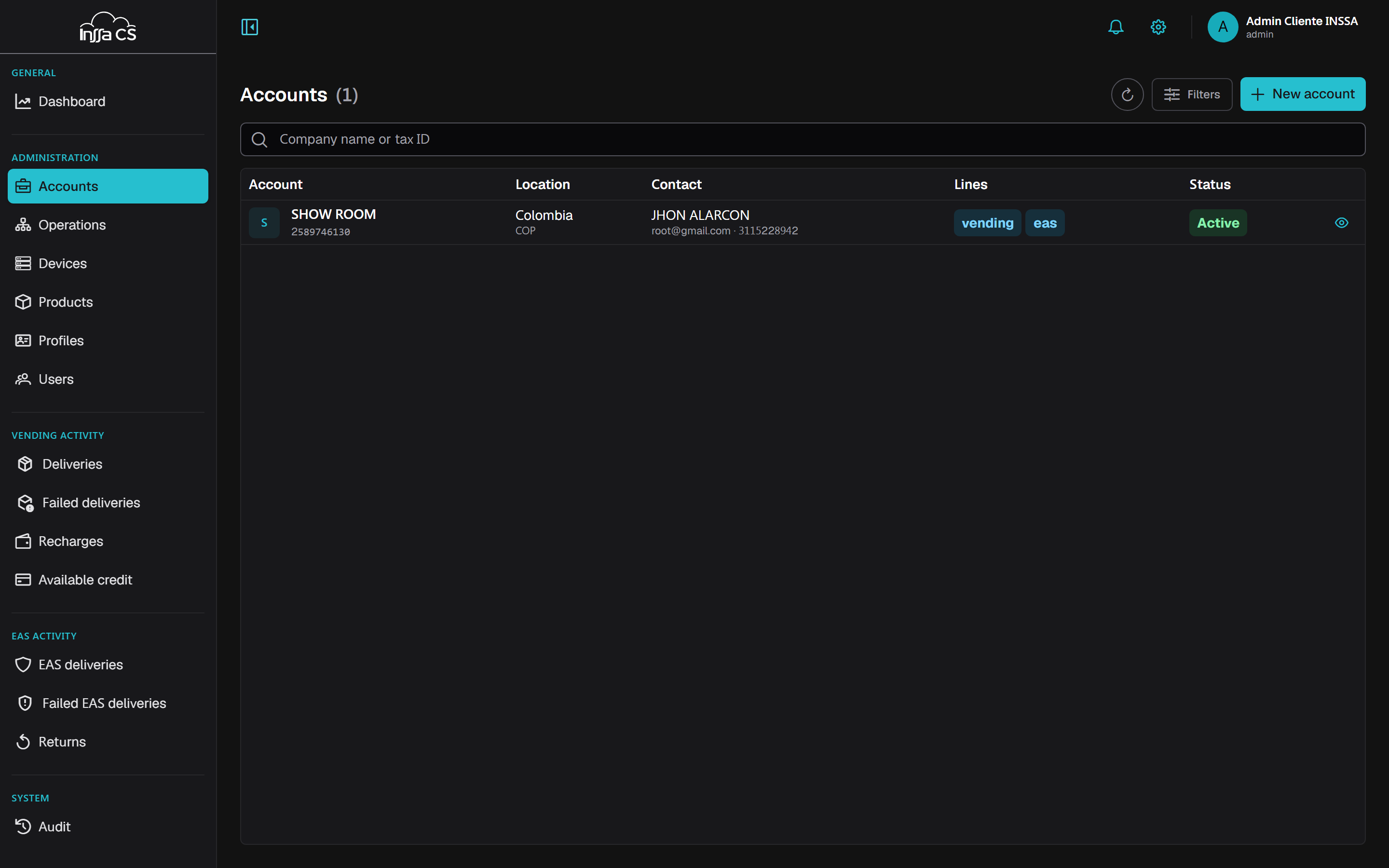
Columns: account (legal name), tax ID, lines, location, contact, currency and status.
Filters: search by legal name or tax ID, business line and status (all / active / inactive).
Creating an account
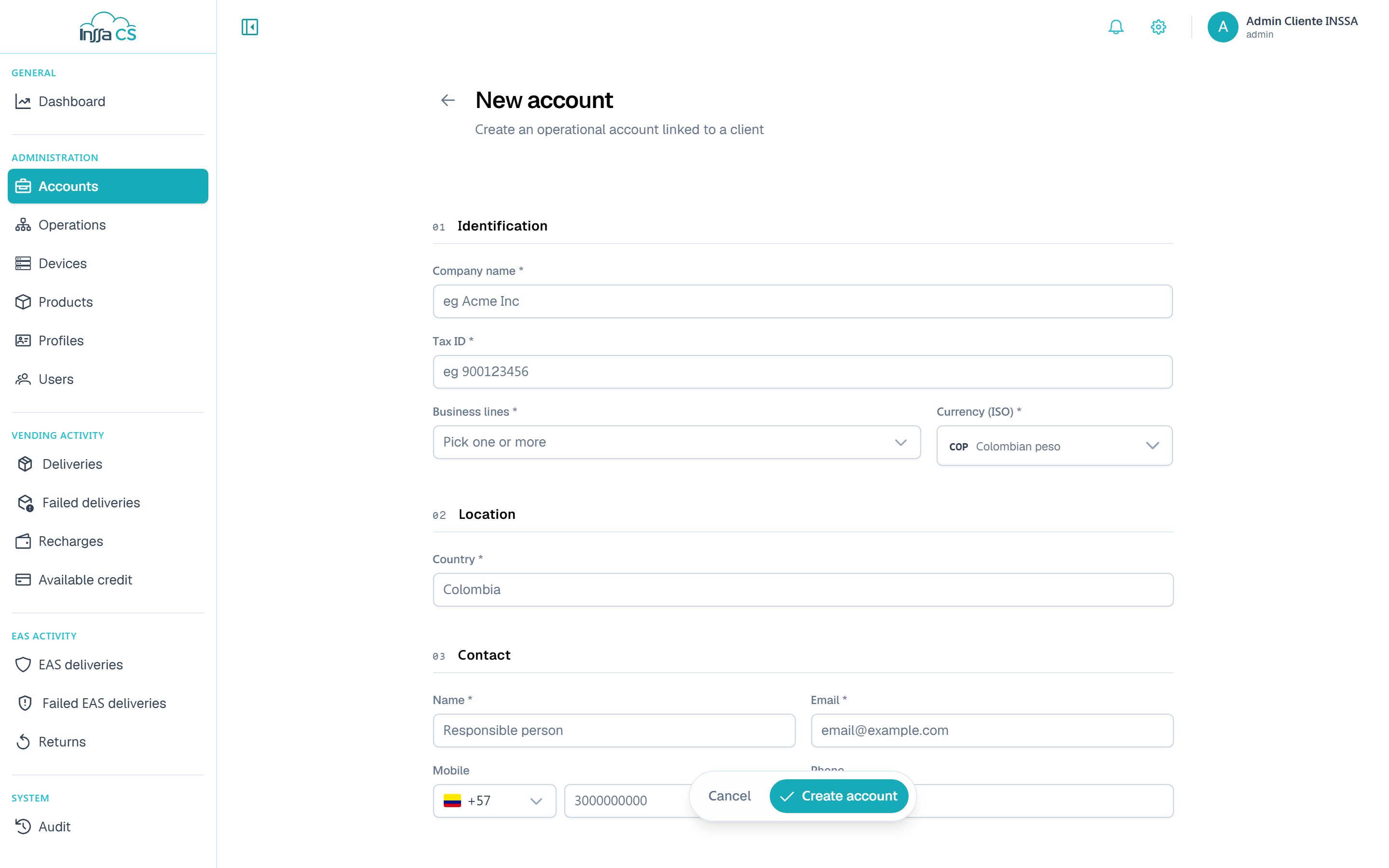
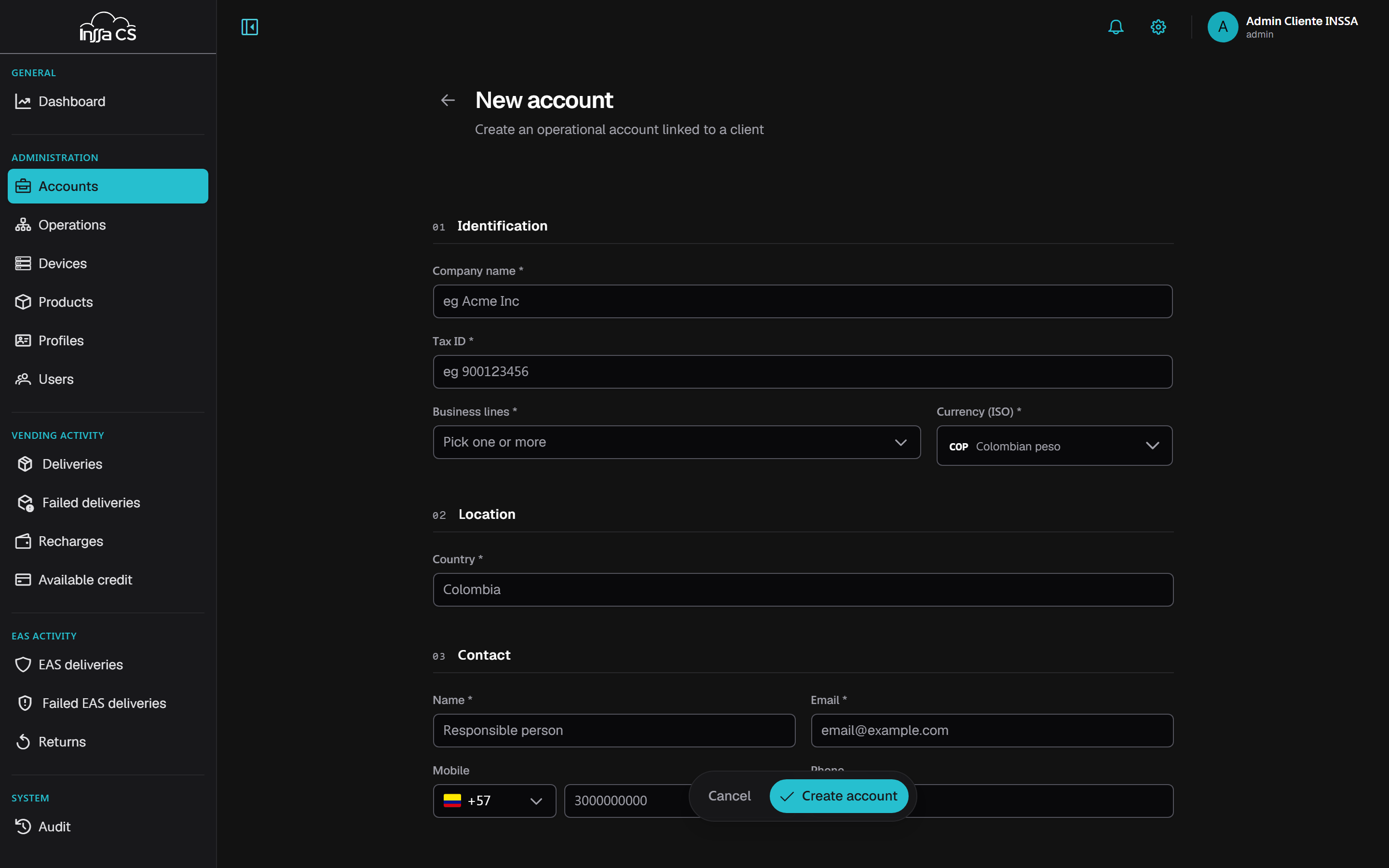
New account opens the form.
| Section | Fields |
|---|---|
| Identification | Tax ID, legal name, business lines (one or more) |
| Location | Country (name, e.g. Colombia), currency (ISO) |
| Contact | Name, email, mobile (with country dialling code) and phone |
| User tags | Up to 4 custom fields, optional |
The currency cannot be changed later. The business lines limit what you can create below: an operation cannot enable a line the account lacks.
If your session belongs to a client, the account is created under that client automatically. Creating the client itself is not done from the app.
Accounts are created by a global or client-level operator. If your scope is an account, you see one —yours— and the New account button does not appear. See Permissions and scope.
Detail and editing
The detail panel is opened by the eye button (👁 View detail) at the end of the row — clicking the row itself does nothing. It shows identification, location, contact and created/updated dates. Edit unlocks the fields and Save changes applies them.
User tags
Up to 4 custom fields to classify the account's consumers (e.g. Department, Shift). From the detail panel you can:
- Add a tag.
- Rename it: the new name applies to every user that already had it.
- Remove it: deletes that tag from all users of the account. Not undoable.
Tags then appear in the user form, in the Tags column of the list and in the Excel export.
Deactivate and activate
Deactivate takes the account out of service; it can be re-enabled. You cannot deactivate the account you belong to —the button is not there— although you can edit it.
Delete
Delete cascades over:
- the account's operations (and their devices);
- the account's profiles;
- users with their codes, tags and assigned products;
- the account's products;
- operators scoped to the account.
Historical movements are kept. The dialog requires typing the account name and the action cannot be undone from the app.