Signing in
Open the address INSSA gave you (by default https://app.inssacs.com). The sign-in screen asks for
email and password.
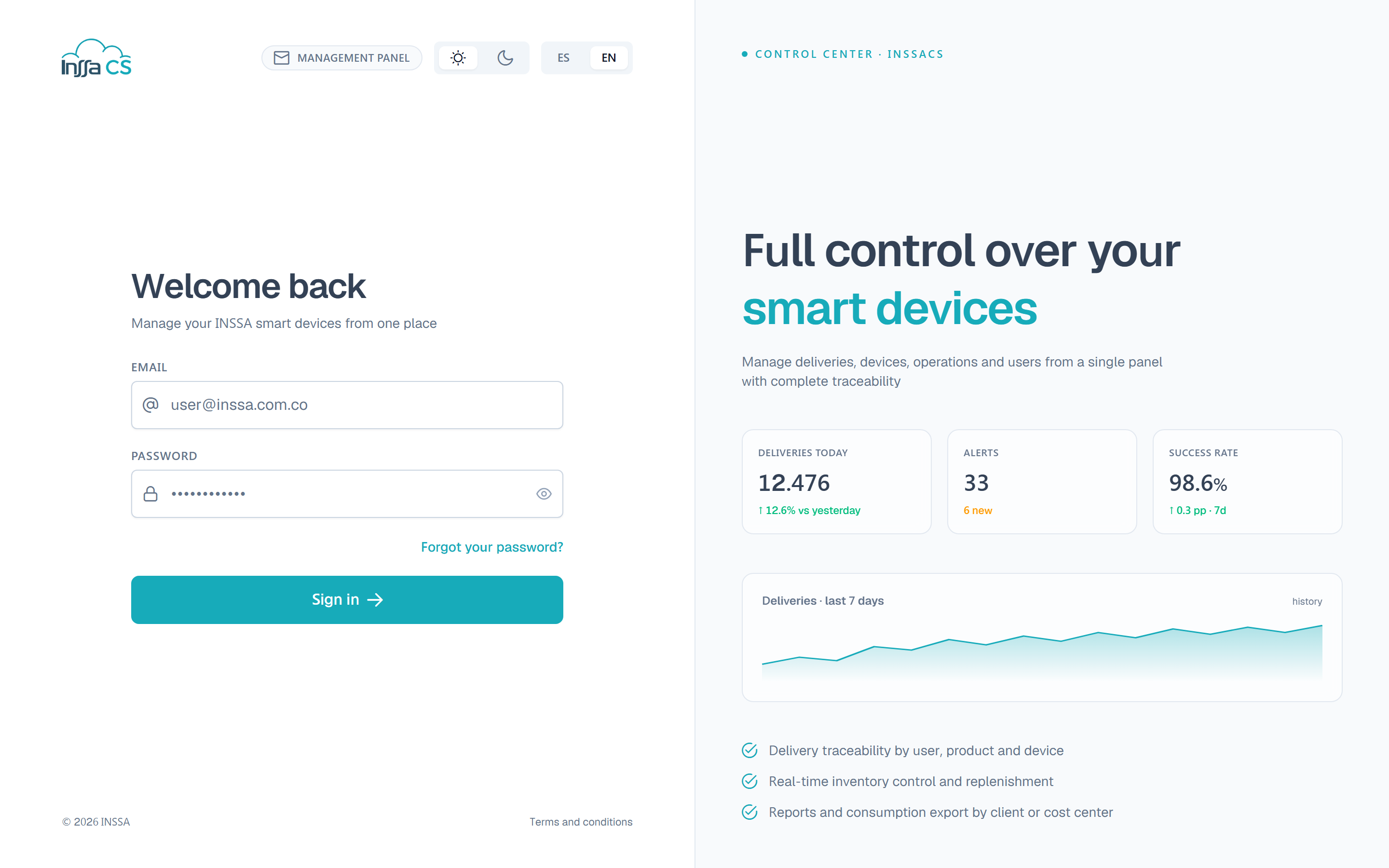
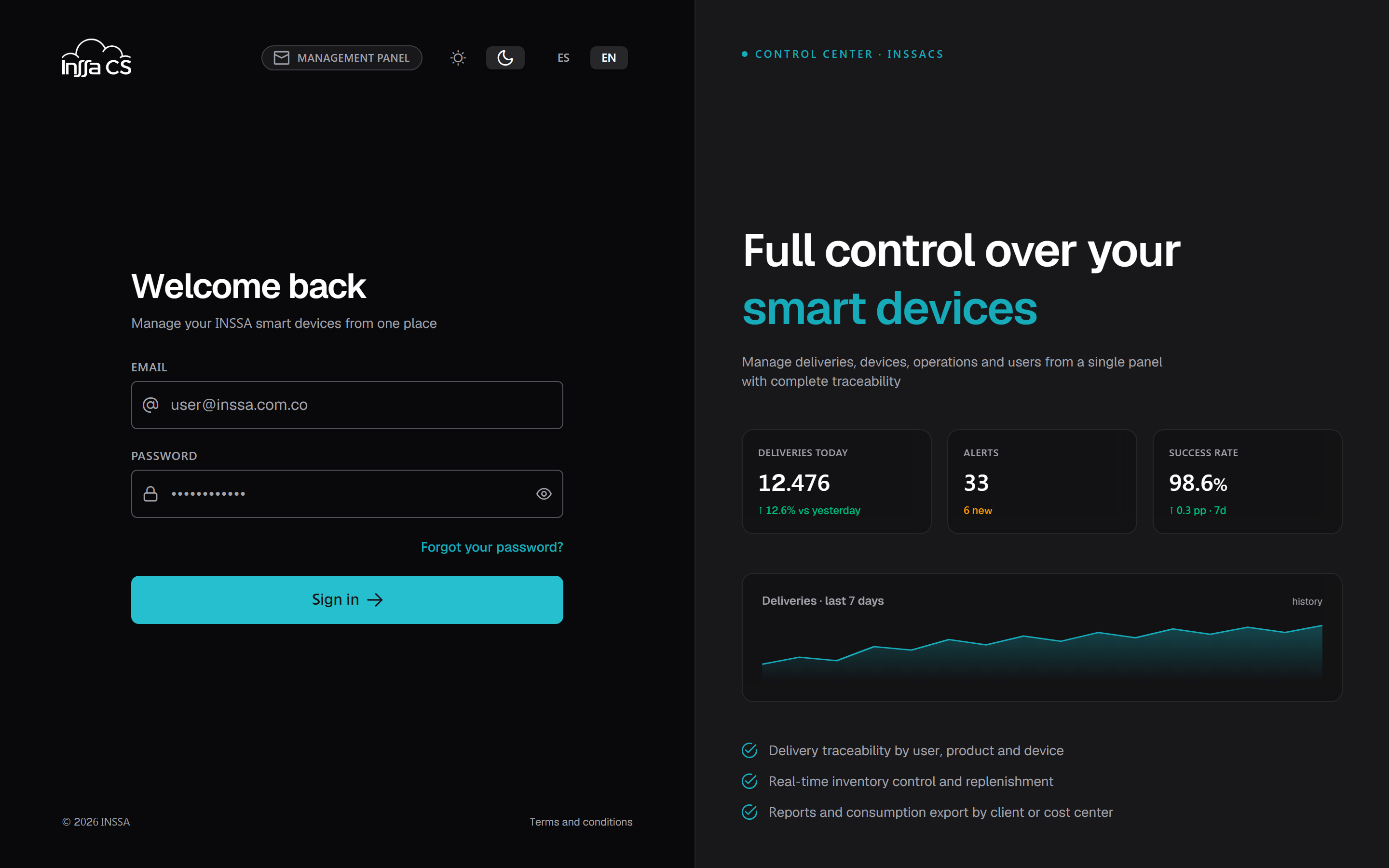
The card corner holds two selectors: theme (light / dark / system) and language (Spanish / English). They apply immediately, before signing in, and are remembered in the browser; once you sign in, whatever is in your preferences wins.
Steps
- Type your corporate email.
- Type the password. The eye icon reveals it if you need to check.
- Press Sign in.
You land on the Dashboard. If your operator has no reports permission, the app takes you to the first section you can access.
Common errors
| Message | Meaning |
|---|---|
| Invalid credentials | Wrong email or password. |
| Operator inactive | Your operator exists but is deactivated: ask your administrator to enable it. |
| Session expired or unauthorized | The session lapsed. Sign in again. |
| Could not connect to the server | Network issue or the service is down. Retry, then contact support. |
The session renews itself
While you use the app the session refreshes in the background. After a long idle period or if your session was revoked, the app returns you to sign-in with Invalid session. Sign in again.
Changing your password
Done inside the app, at Your avatar menu › My profile › Security: current password, new one (at least 8 characters) and its confirmation. See Profile and preferences.
The Forgot your password? link on the sign-in screen is informational: resets are done by whoever manages operators in your organisation, from Operators › Edit.